Orders from the site
Every order from your store appears in HugeProfit right away, with no manual transfer. You process it the same way as orders from other channels, and the customer sees the current status in the store.
For general guidance on the order list, filters, and processing, see Orders in the CRM.
Where to find orders
In the Orders section of HugeProfit. Orders from the store are tagged with your store's sales channel (its name is chosen in the store settings). The order number in HugeProfit is the same one the customer saw in the store.

Click the number to open the details:
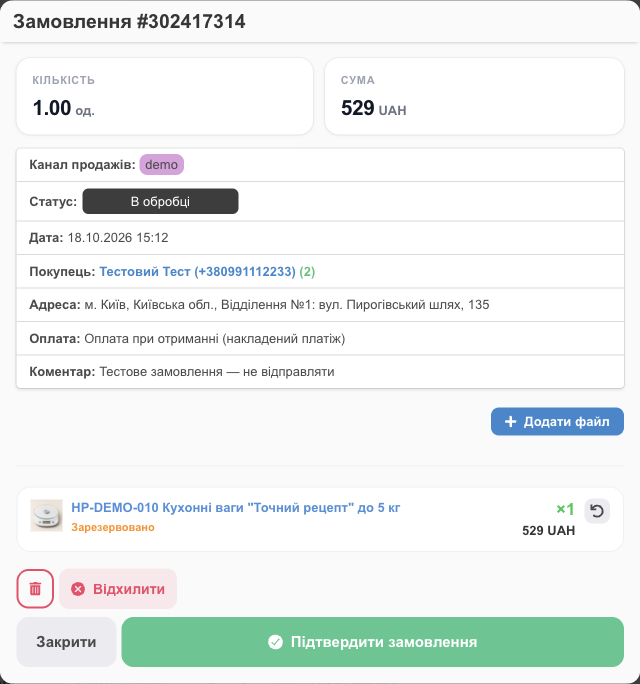
- Customer: full name and phone. The client in HugeProfit is found by phone or created automatically.
- Address: the carrier, city, and branch, or the courier address. For pickup, local delivery, and other methods set up in the site editor: the delivery type, the address the customer entered, and your information about the method (for a custom method, also its name, and the delivery type will be "Other"). For details, see Delivery and cash on delivery.
- Payment: the payment method as it's named in the store.
- Comment: the customer's notes.
- Products: already reserved in the store's warehouse. If a default product is set up (for example, packaging), it's a separate line.
Processing an order
- Contact the customer if you need to clarify details.
- Click Confirm the order: the order becomes a sale, and from there you work with it like any sale: packing, creating a waybill (TTN), shipping.
- If the order won't be fulfilled, click Decline. The product reserve is released.
💡 An order with online payment appears in HugeProfit only after the bank confirms the payment, so unpaid attempts won't show up in the list.
What the customer sees
After checkout, the customer sees an "Order No. … received" page with the details. If they have an account, the order is also in the My orders section.
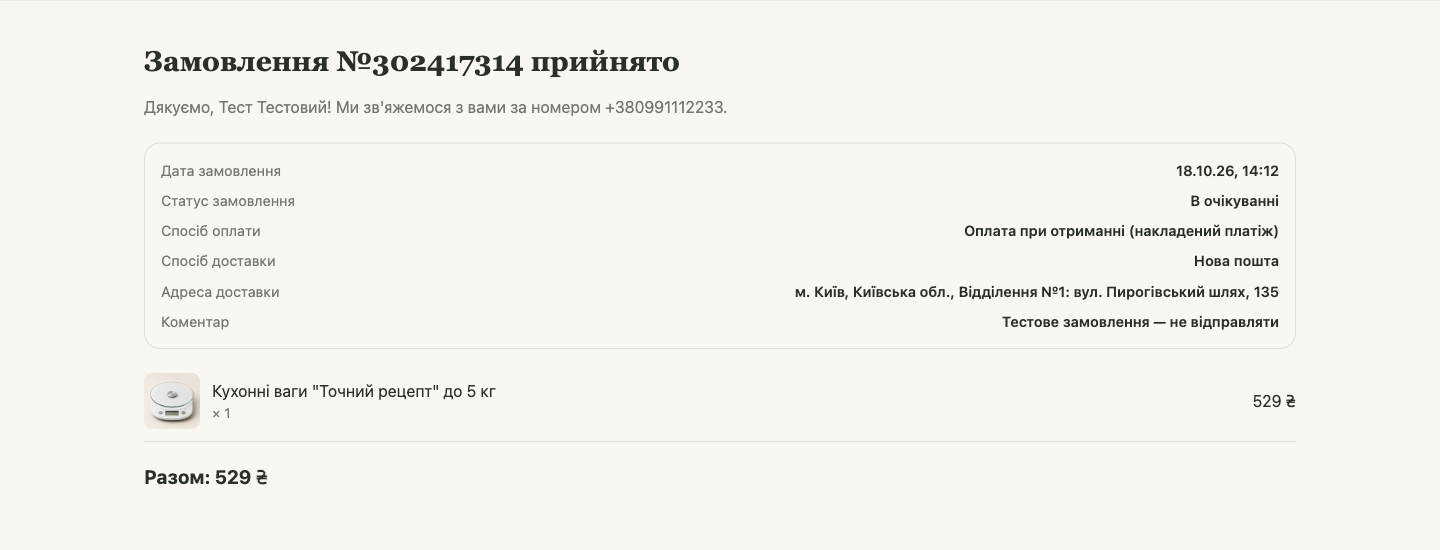
- Until you process the order, the customer sees the "Pending" status.
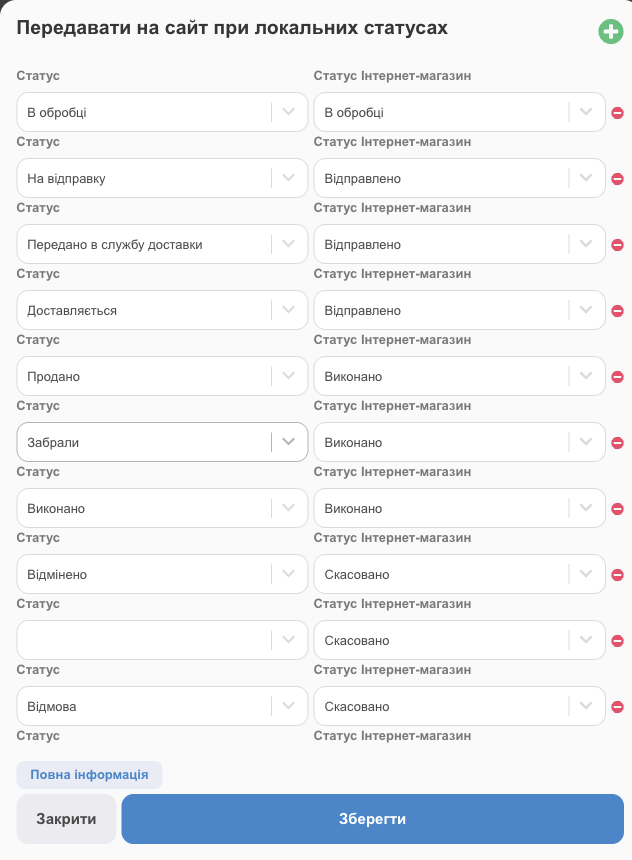
- After that, they see the status from HugeProfit as set up in Online store → Settings → Order statuses. By default, it's already set up what the customer sees when the order is in progress, shipped (the "Shipped" status), completed, or canceled.
- As soon as you create a waybill in HugeProfit, its number appears in the customer's order.
💡 The store doesn't send the customer an email or SMS about the order. If you use HugeProfit mailings or chats, notify the customer there.
Order cancellation by the customer
Customers can cancel an order themselves with the Cancel order button on the order page if:
- they're signed in to their store account with the same phone number as in the order;
- the order is still "Pending", meaning you haven't processed it yet.
The cancellation shows up in HugeProfit right away, and the product reserve is released. If the order is already in progress, there's no button, and the customer contacts you.
Test orders
When testing your store, place test orders with the comment "Test". After testing, decline them in HugeProfit to release the product reserve.