Products on the site: prices, stock, variants, bundles
You don't need to upload products to your store separately. The store pulls them from HugeProfit with names, photos, descriptions, prices, stock, categories, and attributes, and updates them within a minute of any change.
Where to edit products
Everything about a product is changed in HugeProfit, in the Products section: name, photos, description, price, discounted price, brand, category, attributes, additional fields, variants, bundles, and related products. The site editor doesn't edit products. It only decides which categories to show, what the product page looks like, and how the store handles products (the Products tab, covered at the end of this article).
To add or change a product, see the guide on creating and editing a product card. Working with stock is covered in Warehouses and stock.
When a product appears in the store
A product is visible in the store when all of the following are true:
- It has a price greater than 0 in the store's warehouse (main or additional).
- That warehouse has stock of it. Without stock, only services and products in "dropshipping" and "negative stock" warehouses are shown.
- Its category is turned on in the site editor → Categories (products without a category are always shown).
- The product is not turned off for this store in the product card (the Show product on this site toggle, see the next section). All products are turned on by default.
- The product isn't deleted.
💡 You choose the store's warehouse in the store settings: Online store → Settings → Warehouse. If a product is only in another warehouse, it won't appear in the store until you add that warehouse as an additional one (Virtual warehouse).
Photos, video, and product visibility in the store
In the HugeProfit product card, you can set up how a product looks in your store specifically. Open the product for editing: at the bottom of the card there's a block with your store's name. Click Expand:
- Show product on this site: turn it off to hide the product from the store without deleting it from HugeProfit or touching stock. Even with the toggle on, the product won't appear if its category is turned off. For a product with variants, each variant's card has its own toggle: a turned-off variant disappears from the choices in the store, and the other variants stay.
- Photos on this site: check which product photos to show in the store. The rest stay in HugeProfit and on other marketplaces.
- Videos: paste a YouTube or Vimeo link, or a direct link to a video file (.mp4, .webm, .ogg), choose At the start or At the end, and click "+". The video appears in the product gallery along with the photos, as the first or last slide. The video file isn't uploaded anywhere; the store just embeds a player for the link.
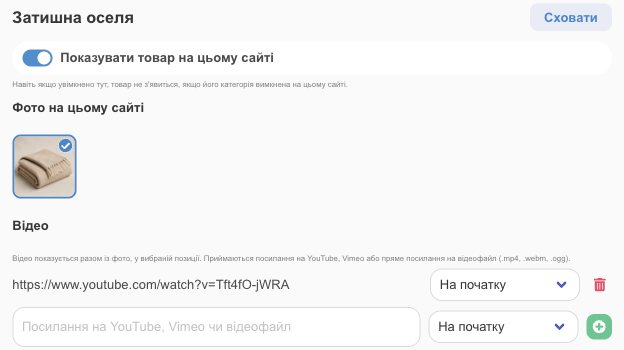
The block appears only for a product that's already saved and is in the store's warehouse. To turn many products on or off at once or set their photos, select the products in the product list and use the bulk actions Site → Enable/disable on site or Photos for site.
Product page
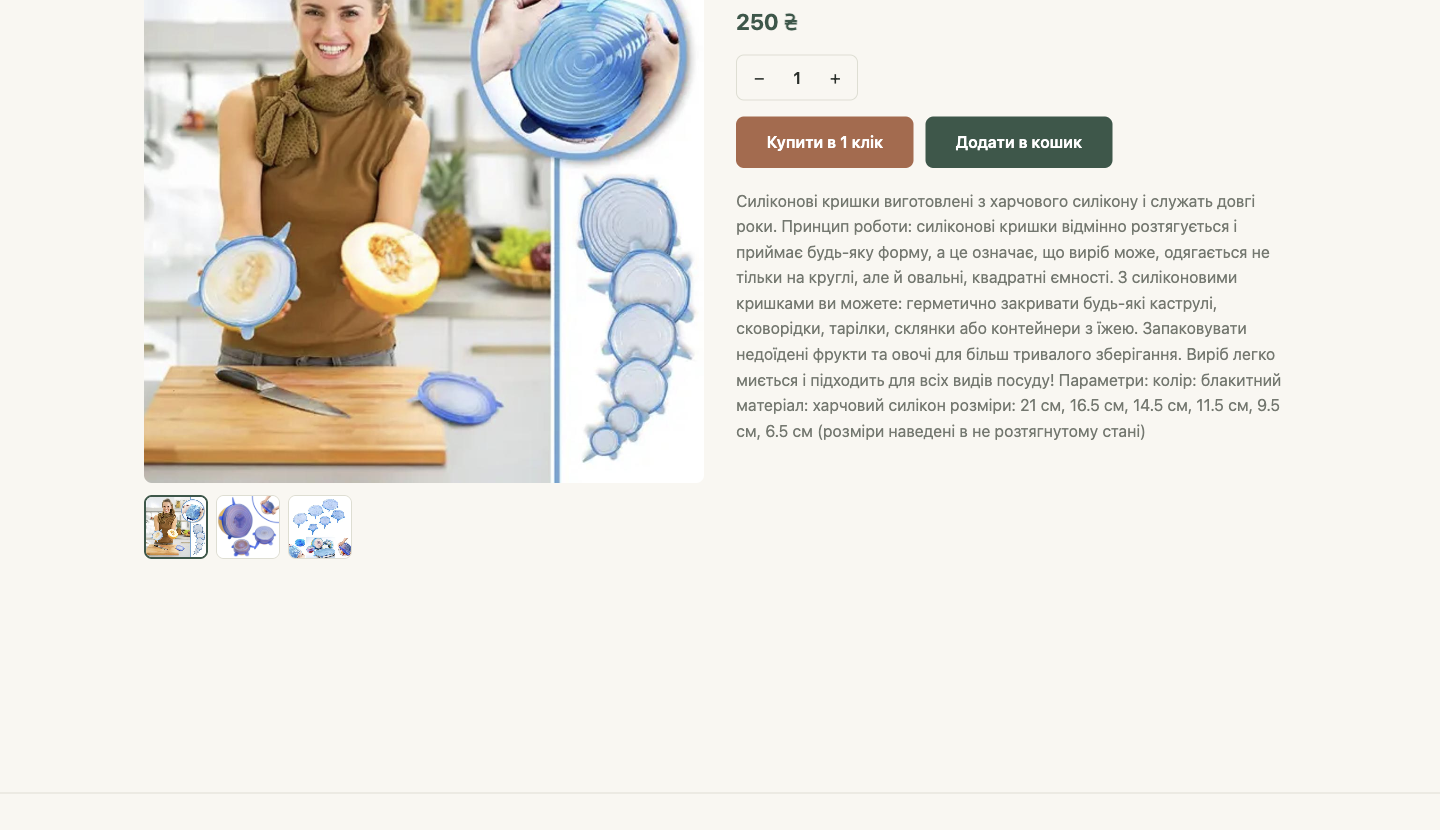
- Photos and video: product photos from HugeProfit (all of them or the ones selected for the store) and videos, if you added any. Customers swipe through them, open photos full screen, and watch videos right in the gallery. For a product with variants, choosing a variant shows that variant's photos.
- Price: from the store's warehouse. If a discounted price is set in HugeProfit, the store shows the new price, the old price crossed out, and the discount percentage.
- "Buy in 1 click" adds the product to the cart and opens checkout right away. "Add to cart" adds it and keeps the customer on the page.
- ♡: add to Favorites.
- Description: from the product card in HugeProfit (how it's displayed is covered below).
- Attributes: a table of the product's attributes from HugeProfit. It's always shown when the product has attributes.
- "Bundle includes" or a "cheaper together" offer: for bundles and products that are part of bundles.
- "Additional information": the product's additional fields from HugeProfit that you selected (for example, "Material" or "Country of origin"). Off by default.
- "Product code": the SKU. Off by default.
- "Related products": from the product's related products group in HugeProfit; if the product isn't in a group, products from the same category.
Product description
If the description is plain text, a blank line between paragraphs splits it into separate paragraphs. Single line breaks merge into one paragraph.
If the description contains HTML markup (for example, it was moved from another website or marketplace), the store shows the formatting: paragraphs, bold and italic text, underline, headings, lists, quotes, links, text color, and images (by https://… link).
⚠️ Tables, embedded videos, indented blocks, and other tags aren't displayed in the store; only their text remains. It's better to enter technical specs as attributes or additional fields: they're shown in a separate table, and attributes also appear in catalog filters. Add videos through the store block in the product card (see above).
How to set up the product page
All products use a shared template: site editor → Pages → Product page → Product card block. In the preview in the middle, the editor fills in one of your products so you can see the result.
- Image gallery: Main photo + thumbnails or Slider.
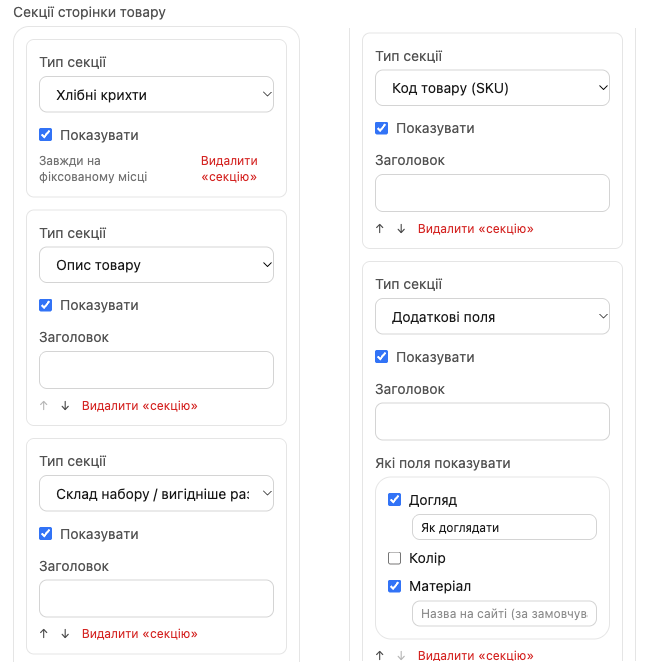
- Product page sections: the list of sections under the price and buttons. Each section has a Visible checkbox and a Title field (if it's empty, the title is the default one or there's none). Change the order of sections with the ↑↓ arrows, and remove a section you don't need with the Remove "section" button.
- Breadcrumbs always sit above the product name, and Related products at the very bottom of the page. You can hide them but not move them; they're marked Always in a fixed spot. For related products, you set the Number of products (2–8).
- Product attributes aren't shown in this list: they're always on the page.
- + Add: section → choose the Section type:
- Additional fields: in the Which fields to show list, check the product's additional fields you need. Under each one, you can enter a name for the store, so a field called "field3" in HugeProfit shows up for customers as, say, "Color". The field's name in HugeProfit doesn't change. The field is shown only on products where it's filled in; for a product with variants, the selected variant's value is used.
- Custom text: formatted text that's the same for all products, such as delivery terms, warranty, or returns.
- You can also bring back Product description, Product code (SKU), or Bundle composition / savings if you removed them.
You can add your own blocks above and below the Product card block, and they'll appear on every product page. You can also make a custom page for a single product; see Pages. All block settings are in the block reference.
💡 The list of available additional fields comes from your products. If you rename or delete a field in HugeProfit, it's marked no longer exists in the CRM in the list and disappears from the store. Check the new field in its place.
Product name from an additional field
If your product names in HugeProfit are internal (for example, they look like SKUs), the store can show an additional field's value instead. To turn this on: Online store → Settings → Show a custom field instead of the product title → choose the field (the default is Normal product title).
- The new name is shown everywhere in the store: in the catalog, on the product page, in favorites, and in bundle contents.
- If a product doesn't have this field filled in, its regular name is shown.
- Store search finds the product both by the field's value and by its real name.
The list appears in the settings only if you've created additional product fields (Settings → Products → Additional fields, see Product settings).
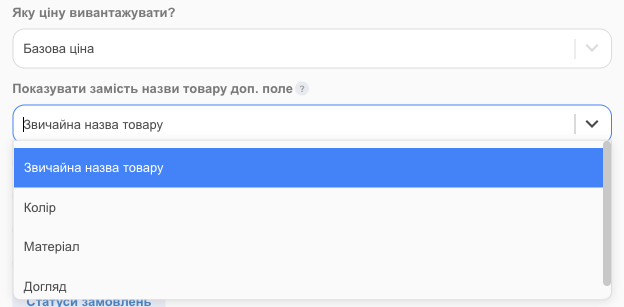
Prices
- By default, the store shows the base price from the store's warehouse.
- You can show a separate store price: in the store settings, under What price to upload?, choose one of the additional prices.
- Discounts: set a discounted price in HugeProfit or run a promotion, and the store automatically shows the old price crossed out and the percentage.
- A client's personal discount isn't shown on the product page. If Apply customer discount at checkout is turned on in the store settings, it's subtracted as a separate line at checkout for a customer who's signed in to their account.
- The delivery cost isn't added to the price and isn't calculated in the store.
Stock
- The store shows only "in stock" / "out of stock". To let customers see the quantity, turn on Show remaining stock quantity in the site editor on the Products tab. When 1 unit is left, "Running low!" appears.
- At checkout, the stock is reserved in HugeProfit. If the order is canceled, the reserve is released.
- Right before an order is confirmed, the store checks prices and stock once more. What happens if a product ran out in the meantime is chosen on the Products tab → When an item runs out at checkout:
- Block — remove the item and ask to re-confirm the cart (default): the product is removed or its quantity is reduced, and the customer confirms the cart again;
- Allow — place the order as a backorder: the order goes through for the requested quantity, and you restock the product.

Product types
| Type in HugeProfit | What it looks like in the store |
|---|---|
| Regular product | A separate card |
| Product with variants (size, color) | One card with a "Multiple variants" label. On the product page, the customer chooses a variant, and the photos, price, availability, and additional fields change. Catalog filters take variants into account |
| Bundle | A "Bundle" label, the bundle contents, and a "cheaper together" offer on the pages of products in the bundle. Set it up in the site editor on the Products tab → Bundle display |
| Service | A "Service" label; sold regardless of stock |
The Products tab in the site editor
Site editor → Products. This is where the settings for how the store shows and sells products live. After making changes, click Save draft, and to make them appear in the store, click Publish.
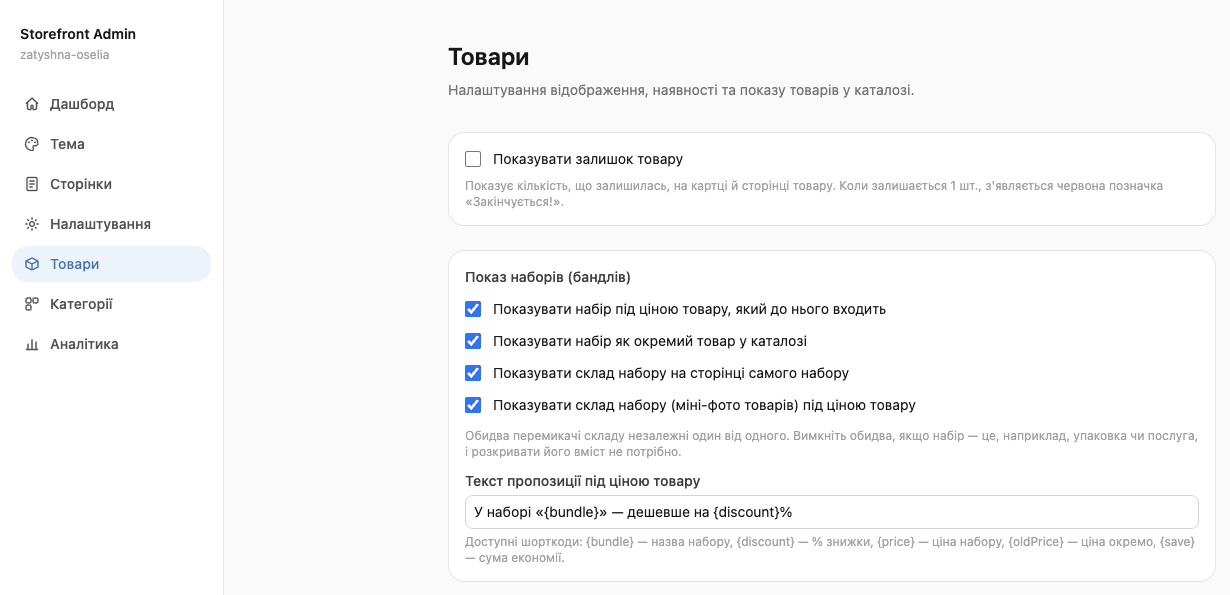
| Setting | What it does |
|---|---|
| Show remaining stock quantity | Customers see how many units are left on the product card and page. When 1 unit is left, a red "Running low!" label appears |
| Bundle display and Offer text under the component's price | Where and how to show bundles and the "cheaper together" offer; see Categories and catalog layout, the "Bundles" section |
| Custom field filters | Additional product fields as catalog filters; see Categories and catalog layout, the "Catalog filters" section |
| When an item runs out at checkout | Block or place as a backorder; see the "Stock" section above |
| Fractional quantity | Turn on Allow ordering a fractional quantity and check the Units that allow a fractional quantity. For products with such a unit of measure (set in the product card in HugeProfit), customers can enter, for example, 1.5 or 0.25. The +/− buttons change the quantity by 1 |
| Default item (e.g. packaging) | A product the store adds to the cart on its own (a box or a bag). See Default product in the cart |
How fast changes appear in the store
Changes to price, stock, name, or category in HugeProfit appear in the store within a minute. Before checkout, prices and stock are always checked live.