Create a store: warehouse, prices, delivery, statuses
All the “technical” store settings, such as warehouse, prices, payment, delivery, and order statuses, are set in HugeProfit, in the store settings window. Design and pages are handled separately, in the site editor.
Who can create a store
The account owner or an administrator can create a store. You can have several stores on one account, for example if different warehouses sell different product ranges. Each store has its own address, design, and subscription.
How to create a store
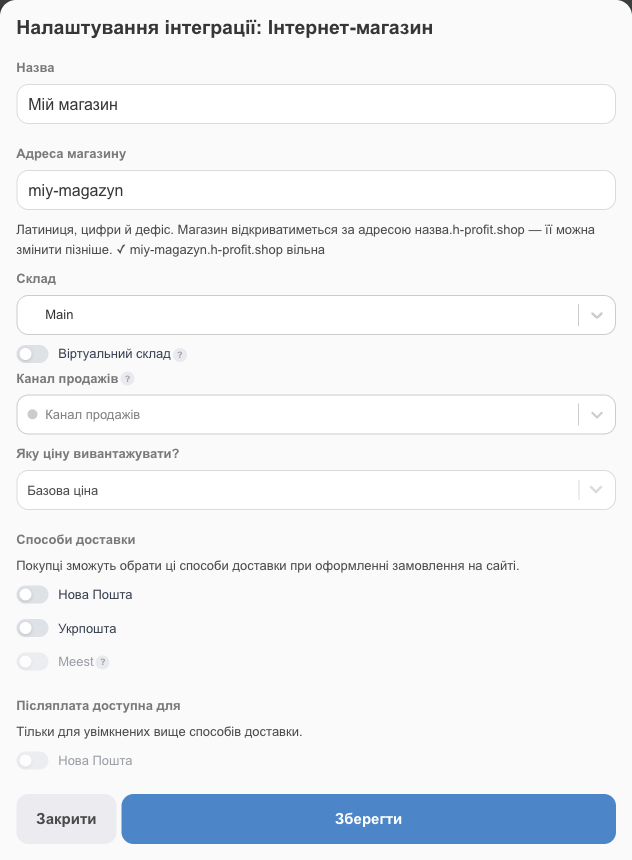
- Open Online store in the left menu. If you have no stores yet, click Create store; if you already have one, click Create another store.
- Fill in the fields (each is described below) and click Save.
- You'll see the Store created message and an Open admin panel button. Go on to set up the design.
A new store comes with ready-made pages (home, Catalog, and About) plus menus in the header and footer. The texts on them are samples; replace them with your own.
Where to change settings later
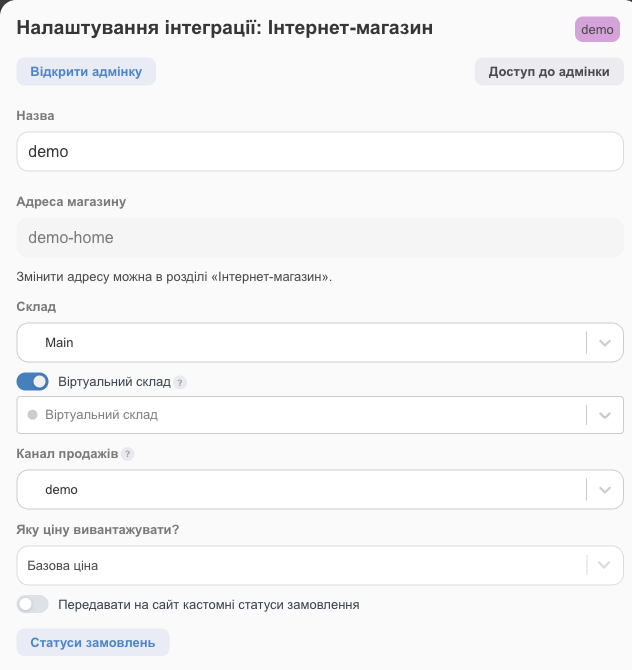
Online store → the Settings button on the store card. The same window opens, just with extra options. After making changes, click Edit (the save button).
Field reference
| Field | What it does |
|---|---|
| Open admin panel | Opens the site editor in a new tab. Visible only to the account owner. |
| Admin access | Sign-in links to the editor for employees and contractors. For details, see Site editor sign-in and staff access. |
| Name | Store name. |
| Store address | Site address name.h-profit.shop: Latin letters, digits, and hyphens, 3–40 characters. You set it when creating the store and can change it later with the Change address button on the store card. |
| Warehouse | The store's main warehouse: prices and stock come from it, and orders are placed against it. |
| Virtual warehouse | Additional warehouses. If a product is out of stock in the main warehouse, it's sold from the next warehouse in the list, at that warehouse's price and stock. |
| Sales channel | The channel that site orders belong to (for reports and filters). If you don't choose one, it's created automatically. |
| What price to upload? | Base price or one of your additional prices. This way, the site can have its own price, different from retail. |
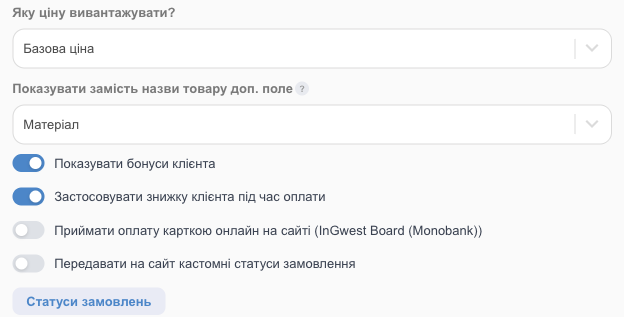
| Show a custom field instead of the product title | Appears if you have custom product fields in HugeProfit. The selected field is shown on the site instead of the product name, and catalog search takes it into account too. If the field is empty for a product, the regular name is shown. The default is Normal product title. For details, see Products on the site. |
| Show customer bonuses | Shows the customer's bonus balance from HugeProfit in their profile on the site (see below). Off by default. |
| Apply customer discount at checkout | The client's personal discount from HugeProfit is applied automatically at checkout on the site (see below). Off by default. |
| Accept online card payments on the site | Appears if Monobank or WayForPay Acquiring is connected in Integration. Turns on card payments right on the site. If several accounts are connected, choose the one to receive payments to. |
| Pass custom order statuses to the site | Shows customers your own order statuses that aren't mapped in Order statuses. |
| Order statuses | Which status the customer sees for each status in HugeProfit (see below). |
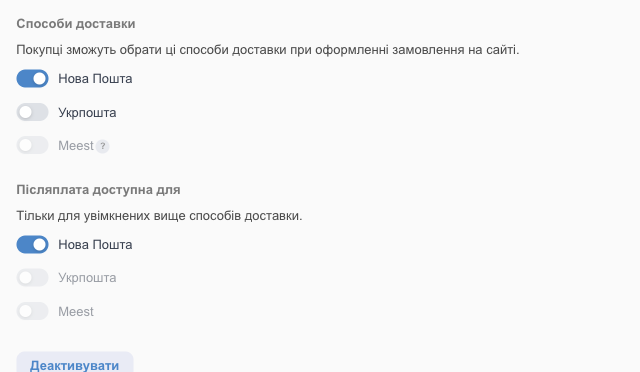
| Delivery methods | Carriers the customer can choose at checkout: Nova Poshta, Ukrposhta, Meest. Only those connected in Integration are active. Pickup, local, nationwide, and international delivery and your own methods are turned on in the site editor, not here; see Delivery. |
| Cash on delivery available for | Carriers for which customers can choose “Pay on delivery” on the site. |
| Deactivate | Turns off the integration completely: the site stops opening. To simply close the site to customers for a while, use the Turn off site button on the store card instead. |
| 🗑 (trash) | Deletes the store: the subscription ends and the address is freed up. This can't be undone. |
Discounts and bonuses for regular clients
You can show the personal discount and bonuses you track for a client in HugeProfit on the site too. Both features work only for customers who are signed in on the site: that's how the site knows who's buying and finds the client in HugeProfit by phone number.
- Apply customer discount at checkout: at checkout, the customer sees a “Discount” line with their personal discount (the Discount field on the client card), and the total goes down. The discount is recorded in the order in HugeProfit. It doesn't apply to products in promotions that have Don't apply client discount on top of this promotion turned on.
- Show customer bonuses: a “Bonuses” line with the client's balance (the Balance field on the client card) appears in the customer's profile on the site. The customer can't redeem bonuses at checkout on the site.
💡 The site shows the client's entire Balance. If you track not only bonuses but also prepayments there, the customer will see those too, labeled “Bonuses”.
To set up discounts and bonuses in HugeProfit, see the CRM documentation: loyalty discounts and bonuses, client card, promotions. For what the customer sees, see How customers shop.
Order statuses for customers
Customers see the status of their order on the site, on the order page and in “My orders”. The Order statuses button opens a table: on the left is the status in HugeProfit, on the right is what the customer sees at that point.
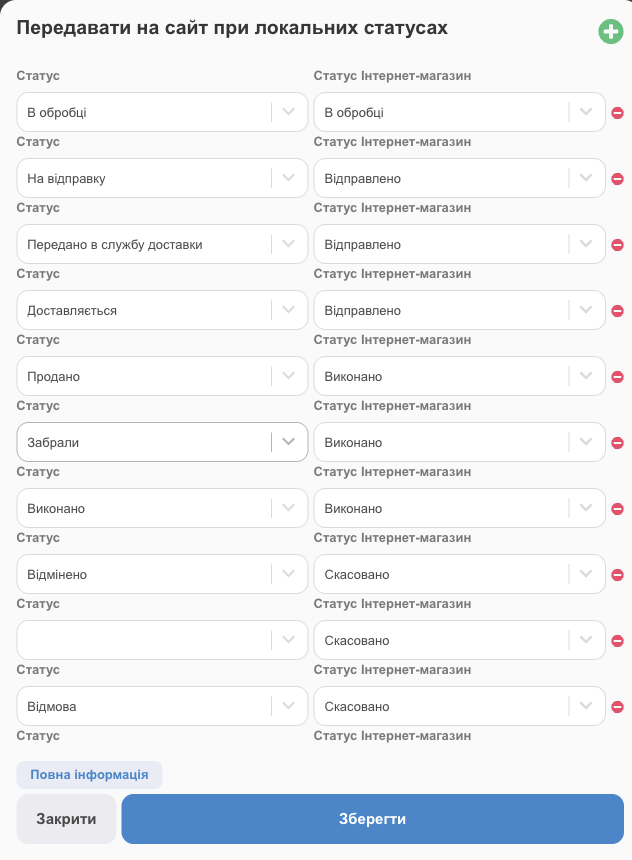
- Four customer statuses are set up by default: “Processing”, “Shipped”, “Completed”, and “Canceled”.
- To add a row, use the green ➕ button at the top; to remove one, use the red ➖. Don't forget to click Save.
- Until the order is processed, the customer sees “Pending”.
- Standard statuses that aren't in the table are shown to the customer under their usual name.
- Your own statuses that aren't in the table aren't shown to the customer, unless Pass custom order statuses to the site is turned on.