Plans, free trial, and payment
The online store has its own subscription, separate from your HugeProfit plan. Learn what it costs, how the free trial works, and how to pay, change your plan, cancel the subscription, or temporarily turn off the site.
Plans
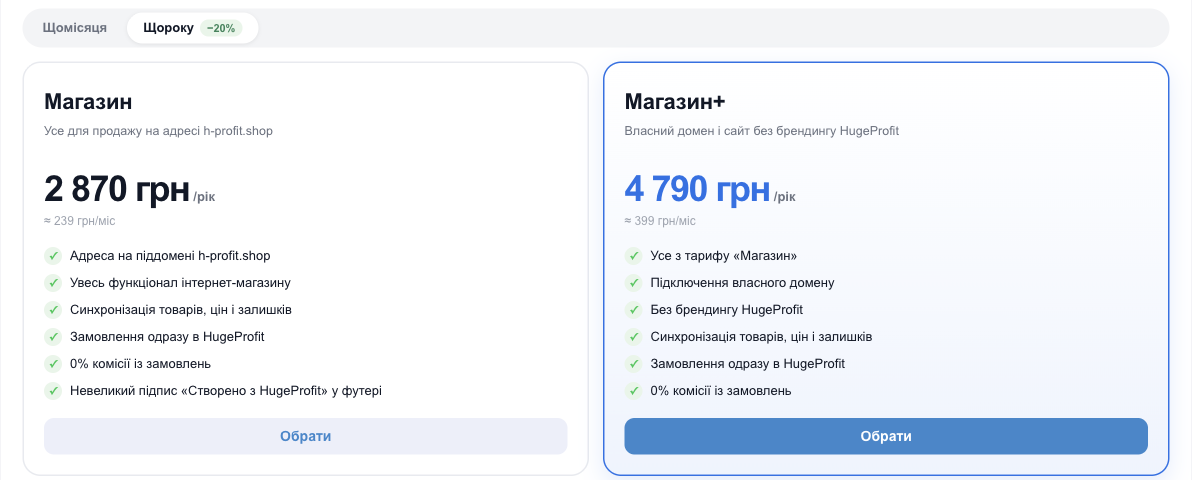
| Store | Store+ | |
|---|---|---|
| Monthly | 299 UAH | 499 UAH |
| Yearly (≈ −20%) | 2,870 UAH | 4,790 UAH |
Address on *.h-profit.shop | ✓ | ✓ |
| Product, price, and stock sync | ✓ | ✓ |
| Orders go straight to HugeProfit | ✓ | ✓ |
| Commission on orders | 0% | 0% |
| Custom domain (for example, shop.ua) | — | ✓ |
| “Made with HugeProfit” note in the site footer | yes | no |
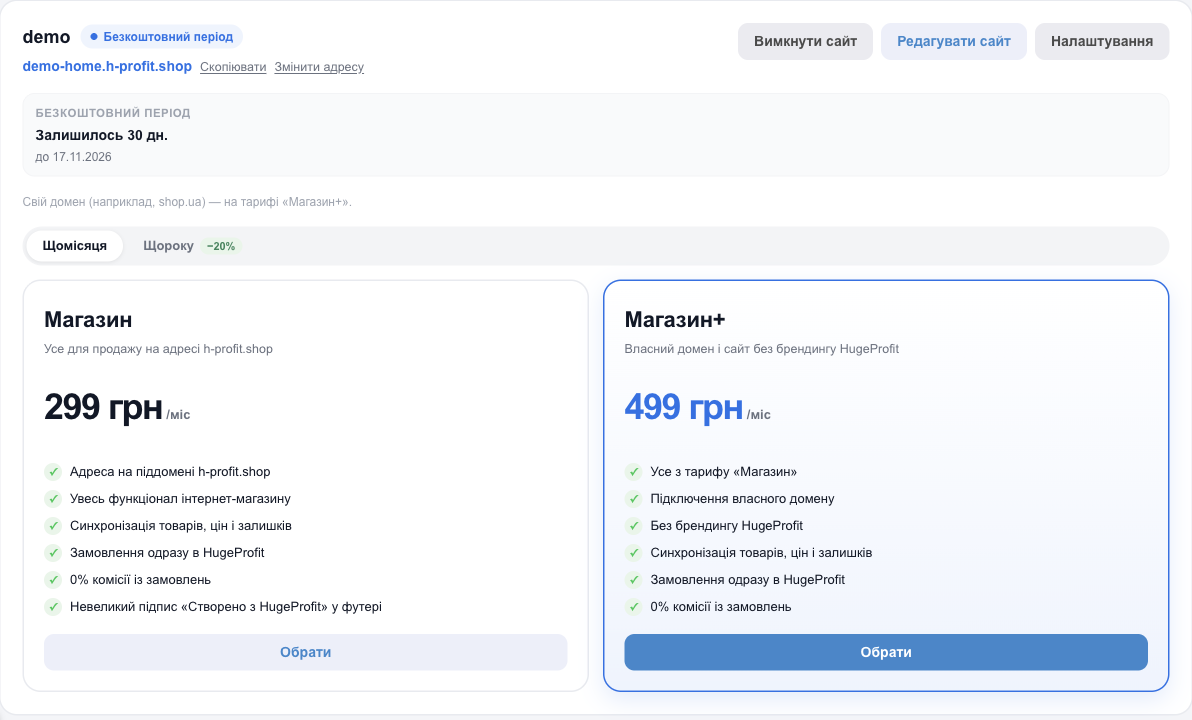
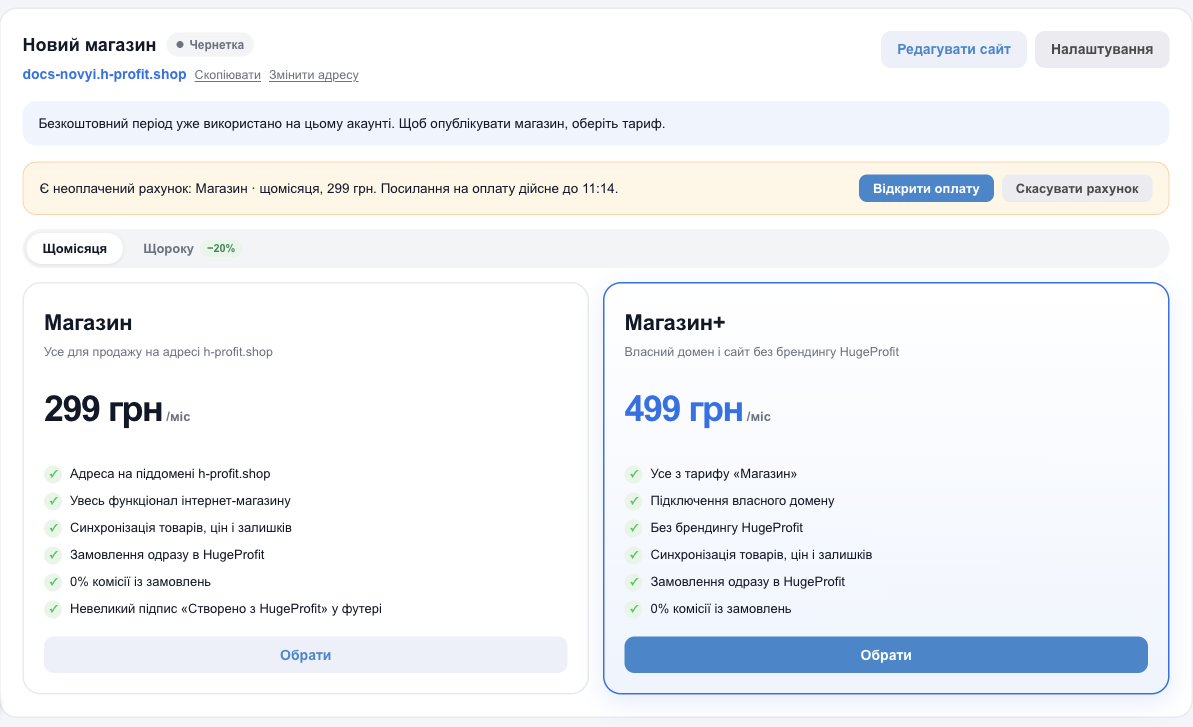
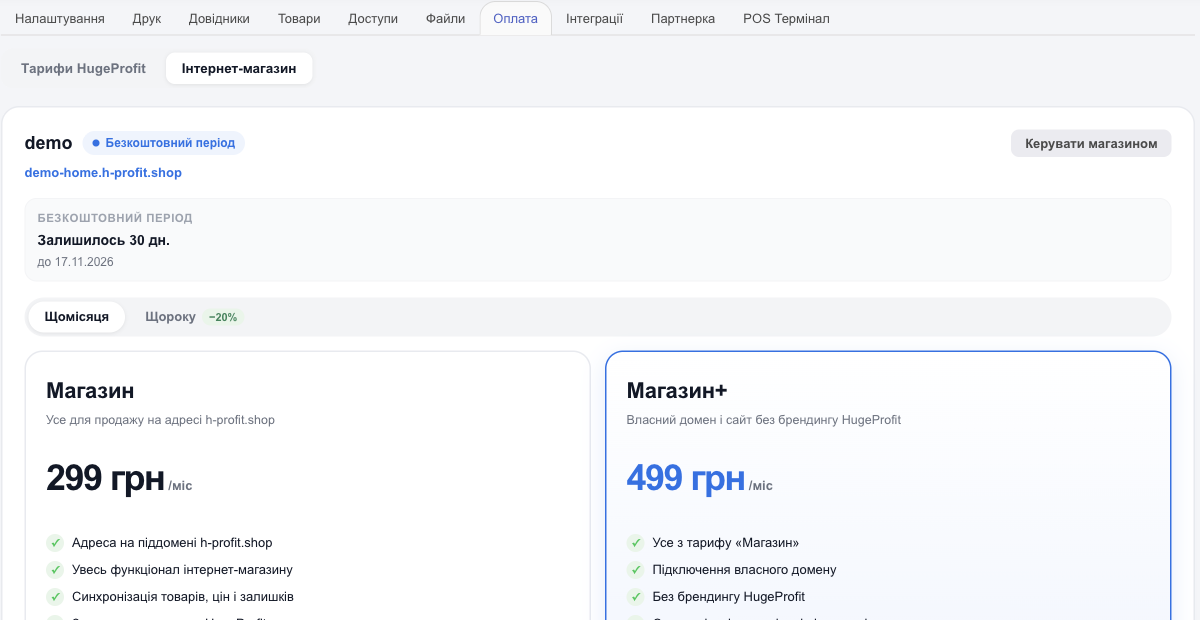
Plans and prices are shown on the store card right away, both in a draft before publishing and during the free trial. The account owner or an administrator can choose and pay for a plan.
💡 The store subscription doesn't change your HugeProfit plan. The number of products and sales is still determined by your HugeProfit plan.
Free trial: 30 days
- You get it once per account, no card required.
- It starts not when you create the store, but after you click Publish store (or after you pay for a plan from a draft; see below). While the store is in Draft status, set it up for as long as you like: no days are used.
- The store card shows how many days are left: Free period — N days left.
- If you pay for a plan during the free trial, the paid period starts after the trial ends, so you don't lose any days.
- You can also pay for a plan before publishing, right from the draft. The store then opens to customers immediately, and the paid period starts after the 30 free days, which you don't lose either.
- A second or later store on the same account can be published only after payment.
How to pay for a plan
- Open Online store (or Settings → Payment → the Online store tab).
- Choose the billing period: Monthly or Yearly −20%.
- Under the plan you want, click Choose.
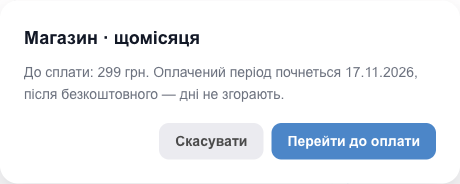
- In the dialog, check the To pay amount, which the system calculates. If you still have free days, the dialog also shows the date your paid period starts. Click Proceed to payment.
- Pay by card on the monobank page.
After payment, your card is saved and auto-renewal turns on: later payments are charged automatically. The store status updates within a minute.
Once the store runs on a paid plan, the store card no longer shows plans. Instead, it has a Plan and payment button. It opens Settings → Payment → the Online store tab, where you can change the plan or billing period, manage auto-renewal, and view payments.
If you closed the payment page without paying
The invoice doesn't disappear right away. Above the plans on the store card, you'll see a “There is an unpaid invoice” block with the plan, the amount, and the time until which the payment link is valid. It has two buttons:
- Open payment: return to the monobank page and finish paying;
- Cancel invoice: drop this invoice. Once you confirm, you can no longer pay it through the old link, and you can choose a plan again.
You don't have to cancel the invoice: if you simply choose another plan or billing period, the confirmation dialog warns “The previous unpaid invoice will be cancelled”, and the old invoice is canceled automatically. In the payment history, such an invoice has the Cancelled status.
💡 If you did manage to pay the previous invoice and then chose a plan again, the system tells you “The previous invoice is already paid — the subscription has been updated. Check the plan before paying again.” You don't need to pay twice.
Changing your plan
| What you change | How it works |
|---|---|
| Store → Store+ | Right away. You pay only for the rest of the current period, and the next payment date stays the same. |
| Monthly → yearly | You pay the full yearly price, and the unused rest of the month is credited as extra days. |
| Store+ → Store, yearly → monthly | From the next payment, with nothing to pay now. Your custom domain works until the end of the paid Store+ period. |
If a payment fails
If an automatic charge fails (for example, the card has insufficient funds), the store status changes to Payment due. The site keeps working, and the system retries once a day, up to 10 times. To skip the wait, pay for the plan manually right on the store card. If all 10 attempts fail, the store is suspended.
Canceling the subscription
- On the store card, click Cancel subscription.
- Auto-renewal turns off, and the store keeps working until the end of the paid period.
- To change your mind, click Turn on auto-renewal or just pay for a plan again.
Temporarily turning off the site
If you need to close the store to customers for a while (stocktaking, vacation, redesign) without canceling the subscription:
- On the store card, click Turn off site and confirm.
- Customers will see the “Coming soon” page, and orders won't be accepted. You can still see the site through Edit website.
- To open the store again, click Turn on site.
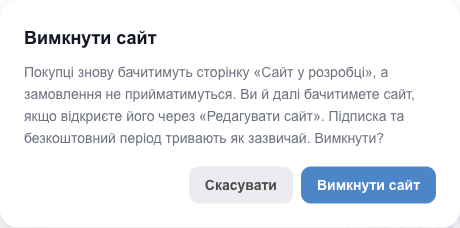
⚠️ While the site is turned off, the subscription and the free trial continue as usual.
Store statuses
| Status on the card | What customers see |
|---|---|
| Draft | The “Coming soon” page. The store isn't published yet. |
| Free period | Your site; orders are accepted. |
| Active | Your site; orders are accepted. |
| Payment due | Your site, while the system tries to charge the payment. |
| Site turned off | “Coming soon”: you turned off the site yourself. |
| Suspended | “Temporarily unavailable”. Pay for a plan and the site comes back right away. |
| Subscription cancelled | “Temporarily unavailable”. Choose a plan to restore it. |
✅ Whatever happens to the subscription, all store settings, design, and pages are kept. After payment, the store comes back right away, exactly as it was.