Draft, preview, publishing, and version history
Changes in the site editor go to a draft first, and customers don't see them. This lets you set everything up, check the result, and only then put it on the site with one button.
Two different kinds of “publishing”: don't mix them up
| Where | Button | What it does | How often |
|---|---|---|---|
| HugeProfit → Online store | Publish store | Opens the store to customers (instead of the “Coming soon” page) and starts the free trial | Once |
| Site editor | Publish | Puts your design and content changes from the draft on the site | After each batch of changes |
⚠️ If you clicked Publish in the editor but customers still see “Coming soon”, the store isn't published in HugeProfit yet. And the other way around: if the store is published but the design is old, click Publish in the editor.
How changes are saved
- The Theme, Settings, Products, Categories, and Analytics sections have Save draft and Publish buttons at the bottom. If you click Publish without saving your changes, the editor saves them first and then publishes.
- In the page editor, changes are saved automatically as soon as you leave a field or add, delete, or move a block. The status is shown at the top: ✓ Saved or Unsaved changes. There's also a Save button.
- If you try to leave a page with unsaved changes, the editor asks: “There are unsaved changes. Leave without saving?”


💡 There's one draft for the whole site. The Publish button in any section publishes all saved changes: theme, settings, products, and pages.
⚠️ Creating, duplicating, deleting, and renaming a page go live immediately, without the Publish button. Any other changes saved in the draft are published along with them.
Preview
- Click Preview draft → (at the top of the Theme and Settings sections).
- Your site opens with the unpublished changes. A dark bar at the top says “Preview mode — you're seeing unpublished changes”.
- To see the site the way customers see it, click Exit preview.
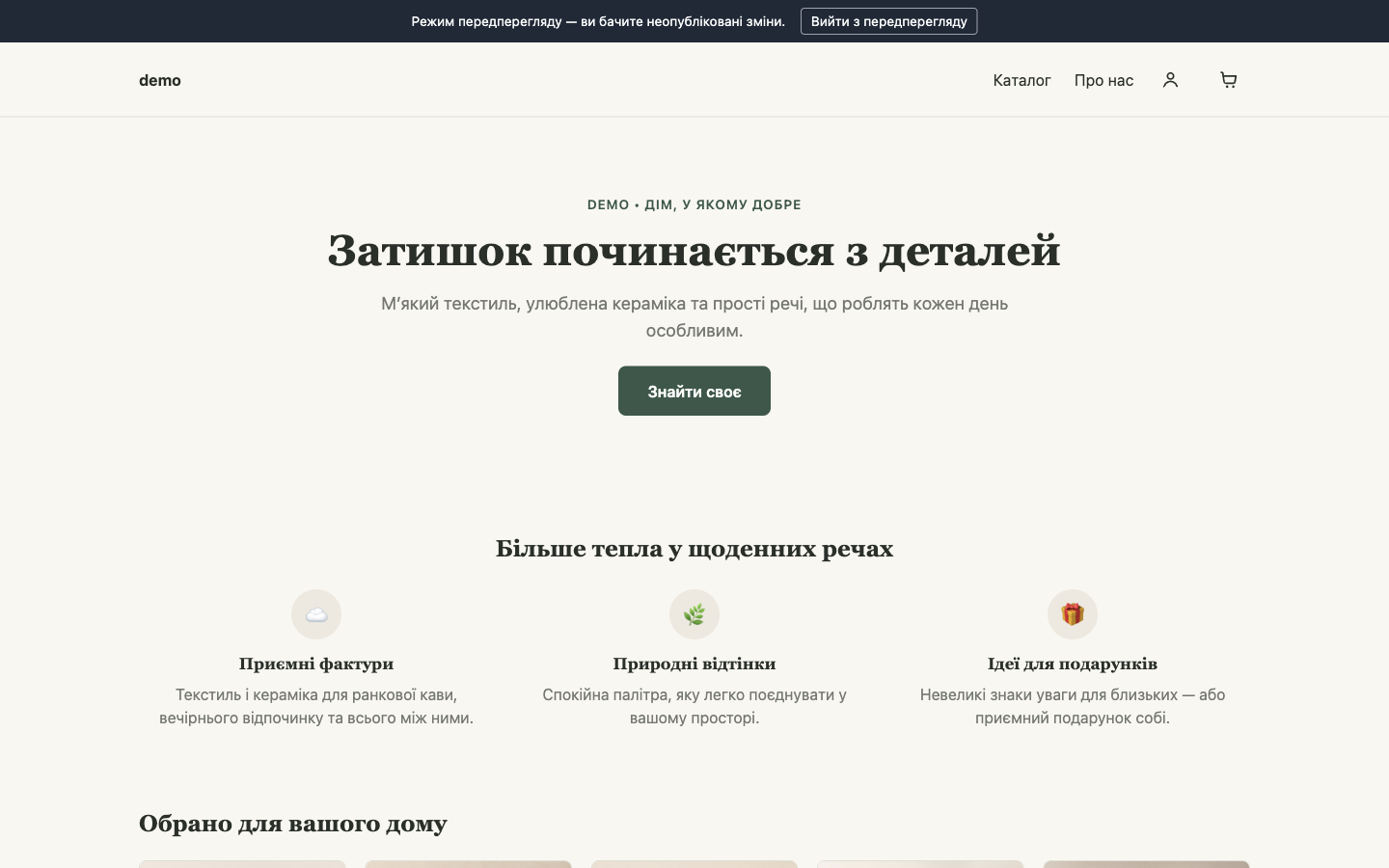
In the page editor, the preview is built in: it's in the middle of the screen, with a 🖥 Desktop / 📱 Mobile switch. Preview also works for an unpublished store: you see the real site, while customers see a placeholder page.
Publishing
- Click Publish. While publishing is in progress, a spinner shows on the button and both buttons are disabled.
- A “Published” message appears below the buttons. In the Theme and Settings sections and in the page editor, it's longer: “Published. If the storefront still shows the old version, reload once more (the first load after publishing may show cached data, the second will be fresh).”
- Open or reload the site.
The site shows the old version after publishing
This is normal. To load quickly, the site keeps a ready-made copy of its pages (cache). The first visit after publishing may still show the previous copy, and that visit is what triggers the update. What to do:
- Reload the page once more: the second load shows the new version.
- If you still don't see the changes after several reloads, make sure you clicked Publish, not just Save draft, and that the message below the buttons said “Published”, not an error.

If you see an error instead of “Published”
| Message | What to do |
|---|---|
| “Can't reach the server. Check your internet connection and try again.” | Check your internet connection and click the button again. |
| “The server didn't respond within 30 seconds. Check your connection and try again.” | Wait a bit and try again. |
| “Your editing session has expired. Open the site editor again from the CRM…” | Copy any important unsaved changes (text, for example), open the editor again through Edit website in HugeProfit, and try again. See Site editor sign-in. |
Version history and rolling back changes
Every draft save is recorded in the history, which keeps the last 20 versions.
- Click Version history (in the Theme and Settings sections or in the page editor).
- Find the version you need by date and time.
- Open: load this version into the editor to review it and adjust it if needed, then save and publish.
- Publish: make this version live on the site right away.
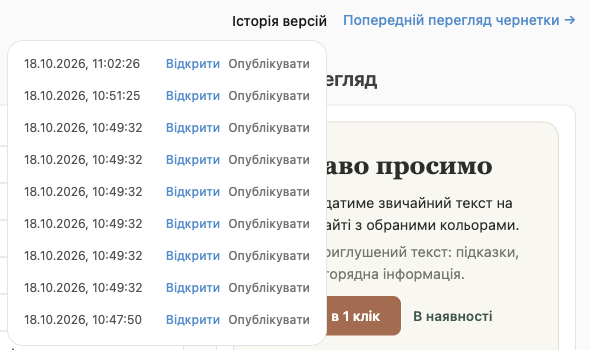
✅ Messed up the design or deleted a block by accident? Open the version history and publish the version from before that.