
Pages: creating, editing, URLs
Every page of your site is made of blocks: banners, product selections, text, FAQs. You build a page from blocks like a construction kit and see the result right away.
Page list
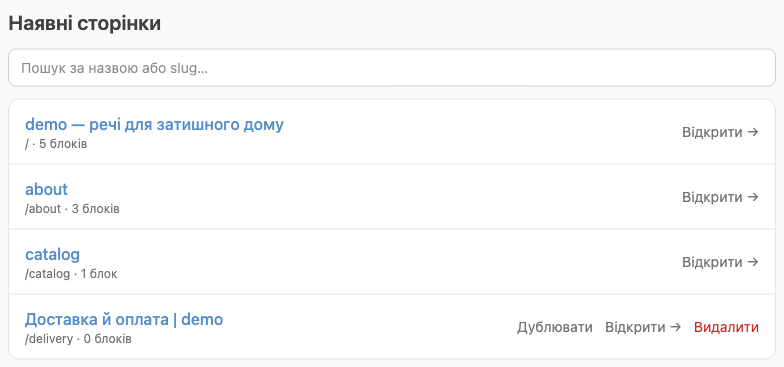
Site editor → Pages. Here you'll find all store pages with their addresses and block counts, a search by title, and the Open →, Duplicate, and Delete buttons.
System pages
Every store has these pages. You can edit them, but you can't delete, duplicate, or rename them. In the list, they're labeled as in the table (or with your SEO title, if you set one):
| Page | Address on the site | What it is |
|---|---|---|
“Home” (home) | / | The store's first page |
“Catalog” (catalog) | /catalog | Catalog of all products with search and filters. You can add your own blocks above and below the catalog |
“About” (about) | /about | “About us” |
“Product page” (product-template) | /product/… | The product page template, shared by all products. It's always in the list, even if you haven't changed it yet |
How to create a new page
For example, “Shipping and payment”, “Returns”, “Contacts”, “Promotions”.
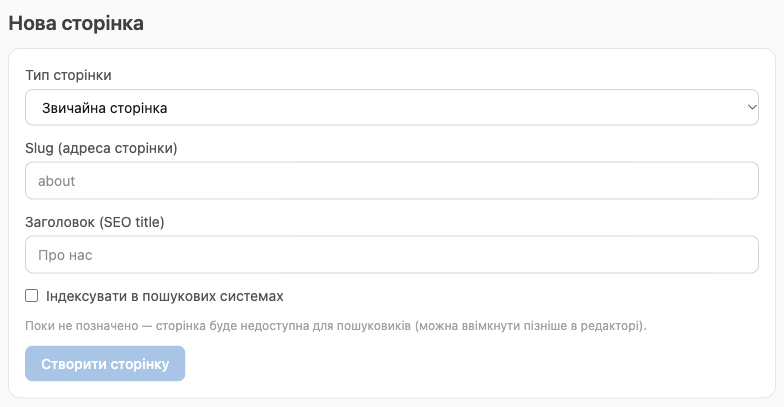
- In the New page section, leave Page type set to Regular page.
- Slug (page address): Latin lowercase letters, digits, and hyphens. For example,
dostavkaputs the page at/dostavka. - Title (SEO title): the page name in the browser tab and in Google, for example “Shipping and payment”.
- Index in search engines checkbox: select it if the page should appear in Google (you can turn it on later).
- Click Create page. The editor opens for the new page, which is still empty.
⚠️ A new page doesn't appear in the menu on its own. Add a link to it: Settings → Header menu or Footer menu, link /dostavka.
💡 A new page is live on the site at its address right away, even while it's empty. Fill it in as soon as you create it.
Page editor
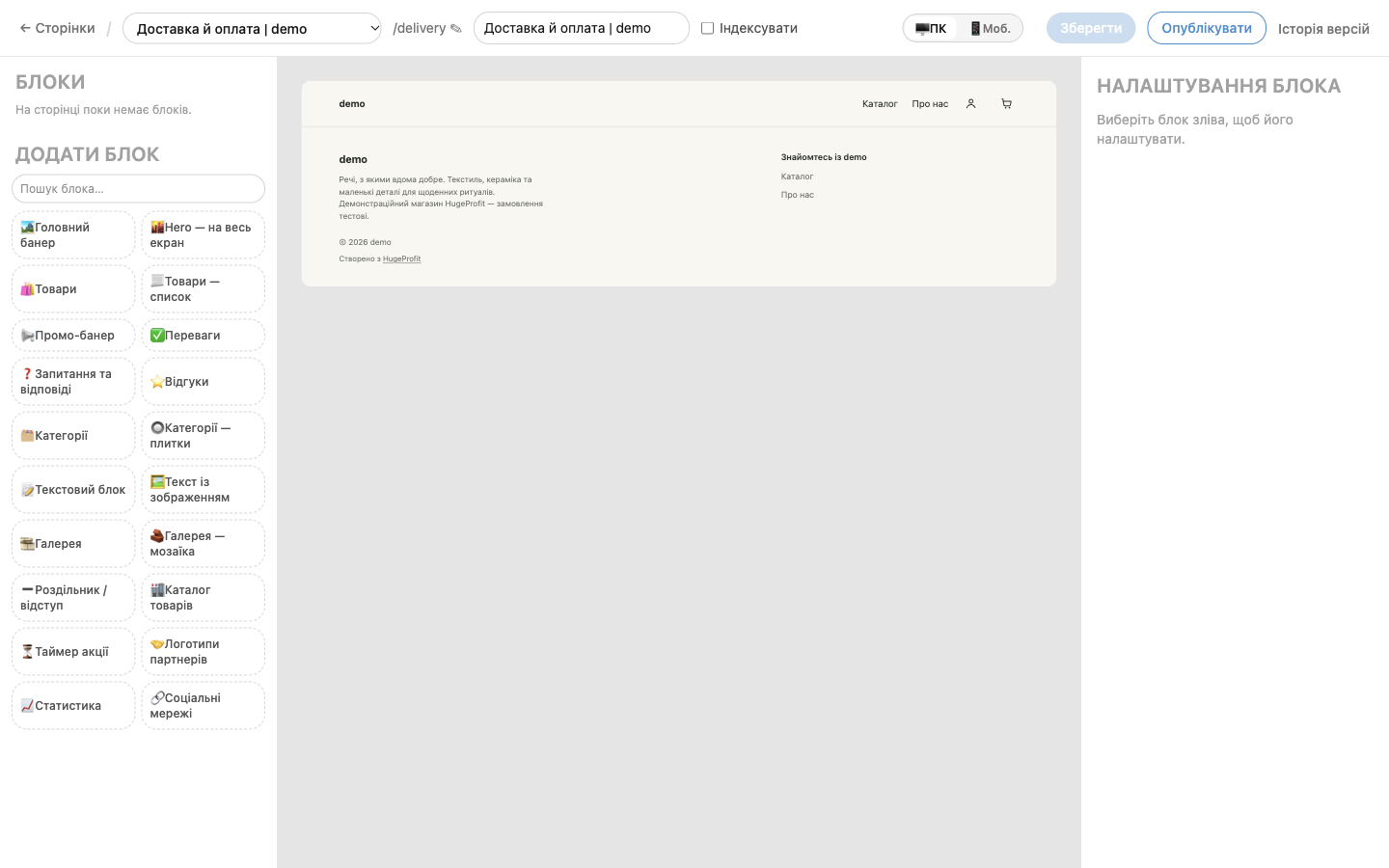
- Left: this page's Blocks, with Add block and a search below them.
- Middle: a live preview of the page. The 🖥 Desktop / 📱 Mobile switch at the top shows how it looks on a computer and on a phone.
- Right: Block settings, the fields of the selected block.
- Top: a page switcher (list), the page address with a ✎ pencil to rename it, the SEO title, the Index checkbox, Save, Publish, and Version history.
On a computer, you can collapse the left and right panels with the arrow in the panel's top corner (Collapse panel) to widen the preview, and expand them back the same way.
How to add and set up a block
- Click the block you need in the Add block list, for example Text block. The block is added to the end of the page.
- Fill in its fields on the right: heading, text, images, buttons.
- The result shows up in the preview in the middle right away.
Block actions
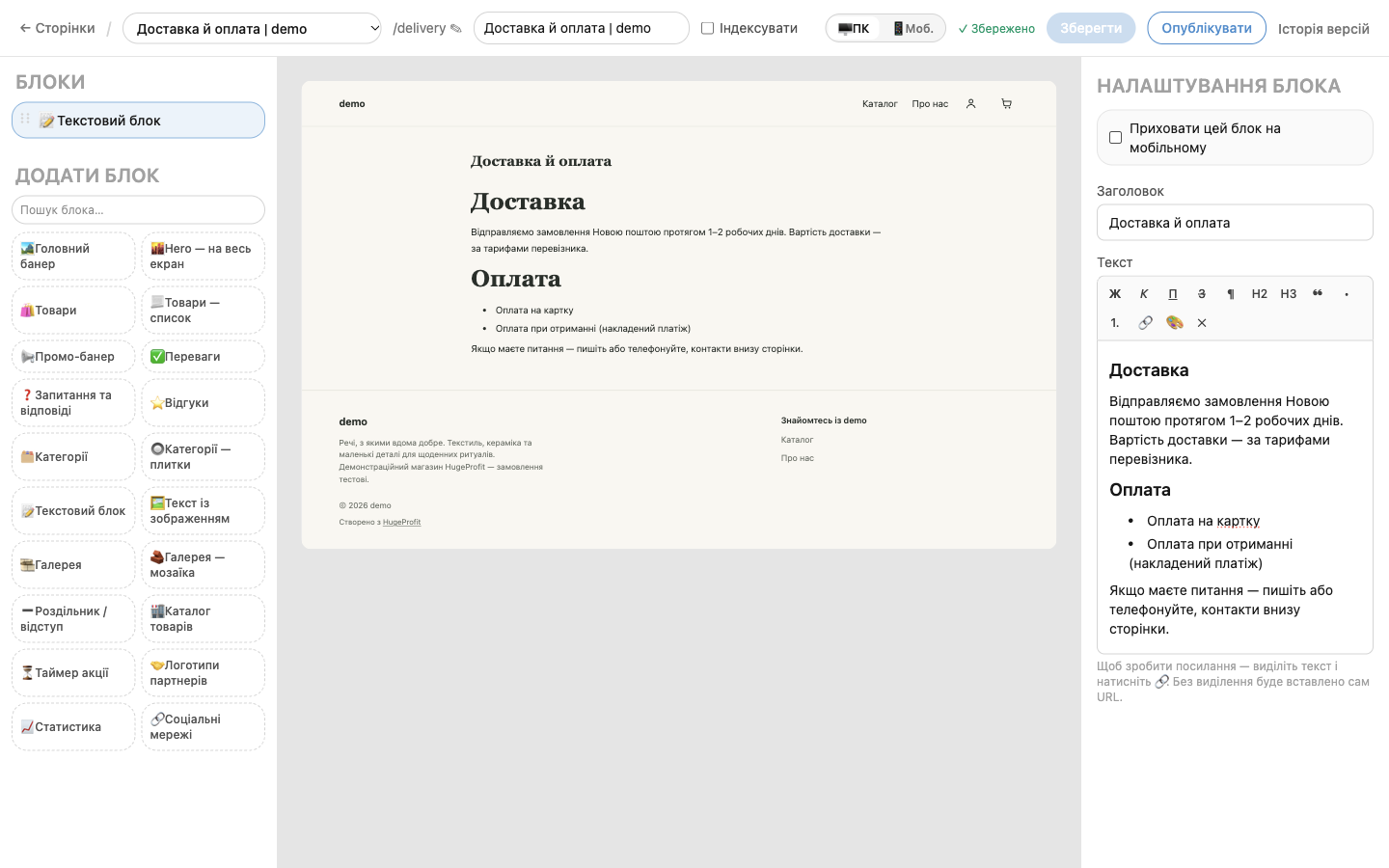
- Reorder: drag a block in the left list by the ⠿ handle, or use the ↑↓ arrows next to the block.
- Duplicate a block: the copy button next to the block (handy for identical sections).
- Delete a block: the trash button next to the block.
- Hide on phones: in the block settings, select Hide this block on mobile. A matching icon appears next to the block in the list.
Working with text and images
- To add a link in text, select the words, click 🔗, and paste the address.
- Images: Upload from your computer (up to 4 MB, JPG/PNG/WebP/GIF), pick from already uploaded ones in the Media library, or paste a link.
- The
</>button in the formatting toolbar shows the text as HTML code, which lets you insert an image into the text. More in the block reference. - Number fields have an allowed range: if you enter a value above or below it, the editor corrects the value and shows the limits.
Changes save automatically as soon as you move to another field or add, move, or delete a block. To put them on the site, click Publish (if there are unsaved changes, the editor saves them first).
💡 After publishing, you'll see a Published message. If the site still shows the old version, reload the site page once more: the first load after publishing may still show the previous version, and the second shows the new one.
Page address, title, and indexing
- Change the address: click the ✎ pencil next to the address at the top, enter a new one, and click Rename. The new address works right away and the old one stops working, so remember to update the menu links.
- SEO title: the field next to the address.
- Index: lets search engines show the page in search results.

Duplicating and deleting
- Duplicate in the page list creates a copy with the address
…-copyand all its blocks, which is handy for making a similar page. The copy is hidden from indexing. - Delete removes the page from the site immediately and permanently. Remove menu links to it yourself.
Product page
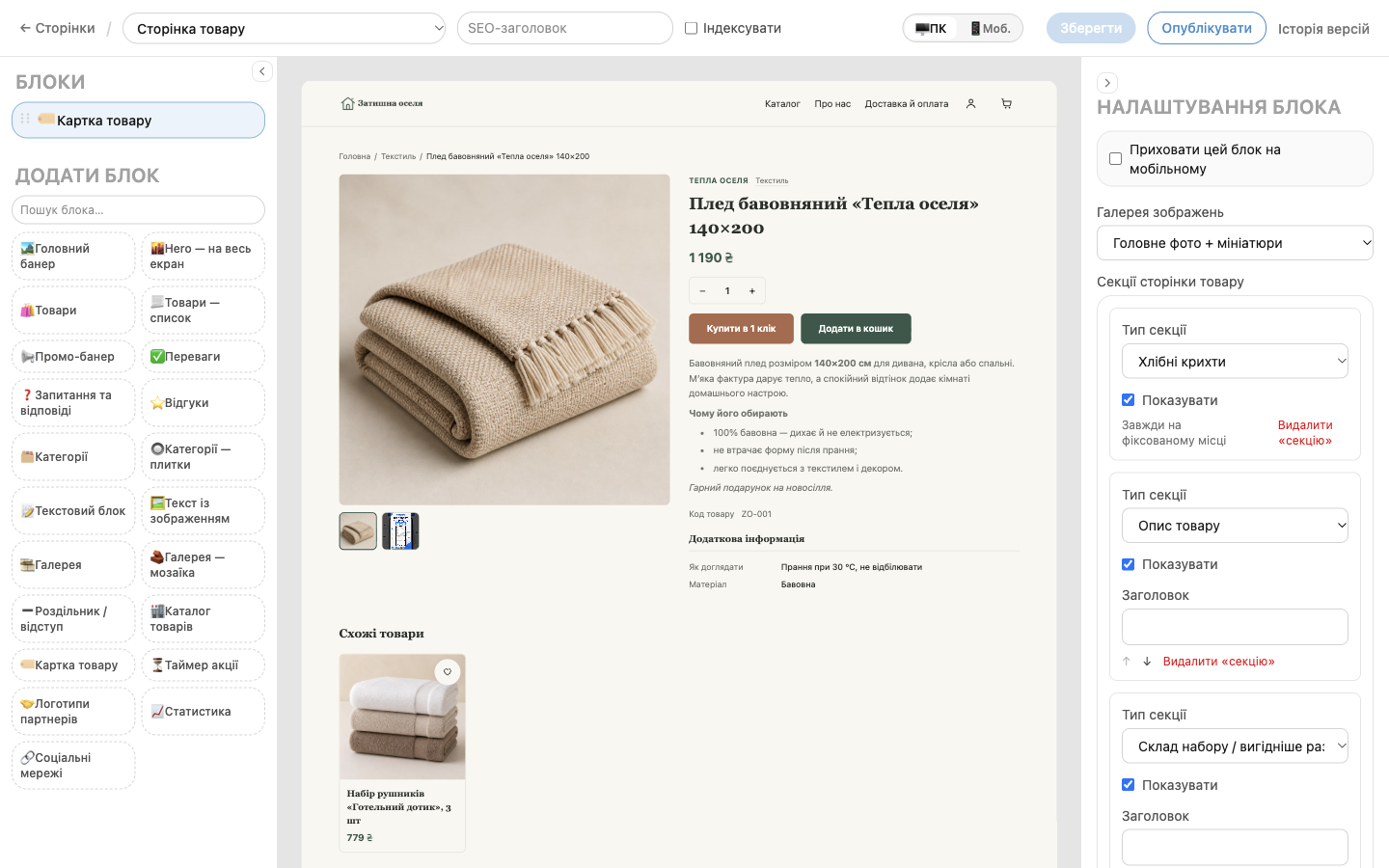
All products use a shared template: the Product page page in the list. It contains the Product card block, and you can add your own blocks above and below it, for example “Advantages” or “FAQ” under every product. While you edit the template, the preview shows one of your products.
In the Product card block settings, you decide what to show under the price and in what order: description, bundle contents, product code, additional fields from HugeProfit, custom text, related products. To learn how, see “Products on the site”, section “How to set up the product page”.
A separate page for a product
You can make a unique page for an individual product: New page → Page type: Product (own page) → choose the product → Create page. For example, for a flagship product with a long description, video, and reviews.
This page is created empty and fully replaces the template for that product. Add the Product card block to it (it appears in the Add block list only on product pages), set up its sections separately from the template, and then add your own blocks.
💡 A product's name, price, photos, video, description, specifications, and additional fields are edited in HugeProfit, not in the site editor. The product page pulls them from there automatically.