SEO and indexing
For your store to show up in Google, search engines need permission to index it. A new store is closed to them by default, so an unfinished site doesn't end up in search results.
What indexing requires
Your site gets into search only when all of these are true:
- The store is published and the subscription is active. Search engines don't index the “Coming soon” and “Store temporarily unavailable” pages.
- The store isn't locked with an access code. If Lock the site — access by code only is on in Settings → Access protection, search engine crawlers see only the entry screen, so your products and pages won't get into search. Learn more in Private store: access codes.
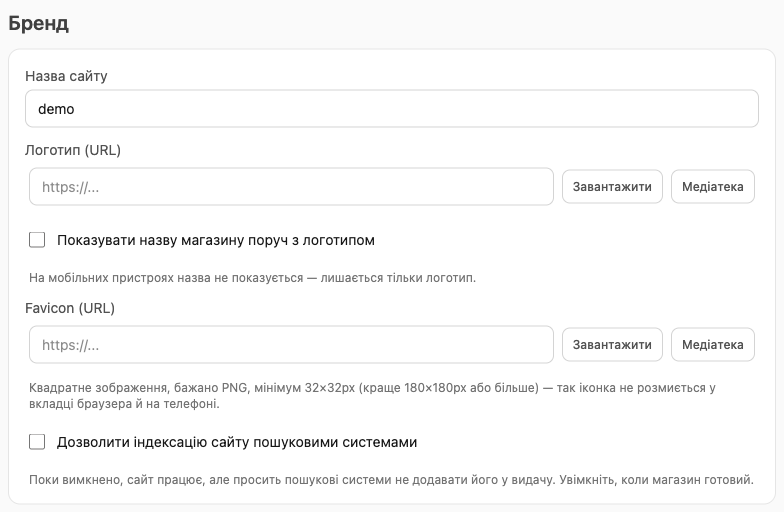
- In the site editor → Settings → Brand, Allow search engines to index this site is on.
- Each of your own pages (home, “About us”, “Delivery”, and so on) has Index turned on: the checkbox at the top of the page editor. Products and categories are indexed automatically once indexing is allowed for the whole site.

⚠️ Don't forget to turn on Index on the home page: like other pages, it's closed by default.
Remember to click Publish after making changes.
💡 If your store will stay locked with a code for a long time (a wholesale store, for example), leave Allow search engines to index this site off. Then the sitemap with the list of pages won't be published either.
Page titles
- The title in the browser tab and in search results is the page's SEO title (the field next to the address in the page editor).
- If a page has no title of its own, the Site name from settings is used.
- For products, the title is the product name; for categories, the category name.
💡 Write SEO titles the way customers search: “Silicone pot lids — buy in Lviv | My store”, not just “Home”.
Sitemap and Google Search Console
Once indexing is allowed, your store automatically gets:
- a sitemap at
https://your-store.h-profit.shop/sitemap.xmlwith all pages with “Index” checked and all products and categories shown on the site; - a
robots.txtfile with a link to the sitemap.
Google finds and crawls sites that other pages link to on its own, so post links to your store on social media, Google Maps (your Business Profile), directories, and your other websites.
Google Search Console (to submit a sitemap and see search stats) requires you to verify that the site is yours. Ownership of a *.h-profit.shop address can't be verified yet. You can do it with a custom domain (Store+ plan): in Search Console, choose the “Domain” property type and add the TXT record Google gives you:
- if the domain is connected via CNAME, add the TXT record to your domain's DNS yourself;
- if via NS servers, HugeProfit manages the DNS records, so send the TXT record to support.
After verification, add the sitemap.xml address in the “Sitemaps” section.
Showing up in search takes anywhere from a few days to a few weeks. That depends on Google, not on your store settings.
Analytics
To see how many people visit your site and where they come from, connect Google Analytics 4, Google Tag Manager, or Facebook Pixel: just enter the ID on the Analytics tab of the site editor. See how in Analytics: Google Analytics, Google Tag Manager, Facebook Pixel.
Not supported yet
- A separate page description field (meta description).
- Adding custom scripts directly. You can add third-party code (a chat, a widget) through Google Tag Manager. See Analytics.