
Categories and catalog layout
Categories on your site are your product categories from HugeProfit. In the site editor, you choose which ones customers see and set up the catalog layout: sidebar, filters, and category icons.
Catalog settings are on two tabs of the site editor:
- Categories: which categories to show, and the look of the sidebar and filters;
- Products: custom field filters, stock display, bundles, and other product settings.
How to show or hide a category
- Site editor → Categories.
- In the list, select the checkbox next to a category to show it, or clear it to hide the category.
- Click Save draft → Publish.

- A hidden category disappears from the menu and the catalog, and all its products are hidden along with it: from the catalog, from search, and by direct link.
- If you hide a parent category, all its subcategories become invisible too (they're marked “hidden by parent category”).
- Categories with no products in stock are hidden on the site automatically.
- Products without a category aren't hidden: they're in “All products” and in search.
⚠️ A new category you create in HugeProfit appears on the site turned off. This keeps internal categories from showing up on the site by accident. After creating a category, go to the editor → “Categories”, turn it on, and publish.
Category names, nesting, and the products in them are changed in HugeProfit.
Category photos and icons
You upload a category's photo and icon in HugeProfit, in the category edit window (the “Category photo” and “Category icon” fields). The site picks them up on its own:
- The photo shows in the “Categories” and “Categories — tiles” blocks on site pages (see the Block reference). Without a photo, the tile shows just the category name.
- The icon shows next to the category name in the catalog sidebar, but only if you turn on Show category icons in sidebar (see below). Icons are off by default.
💡 Turn icons on when every category has one. Otherwise, some categories in the sidebar will have icons and some won't.
Catalog layout
Site editor → Categories, the blocks above the category list:
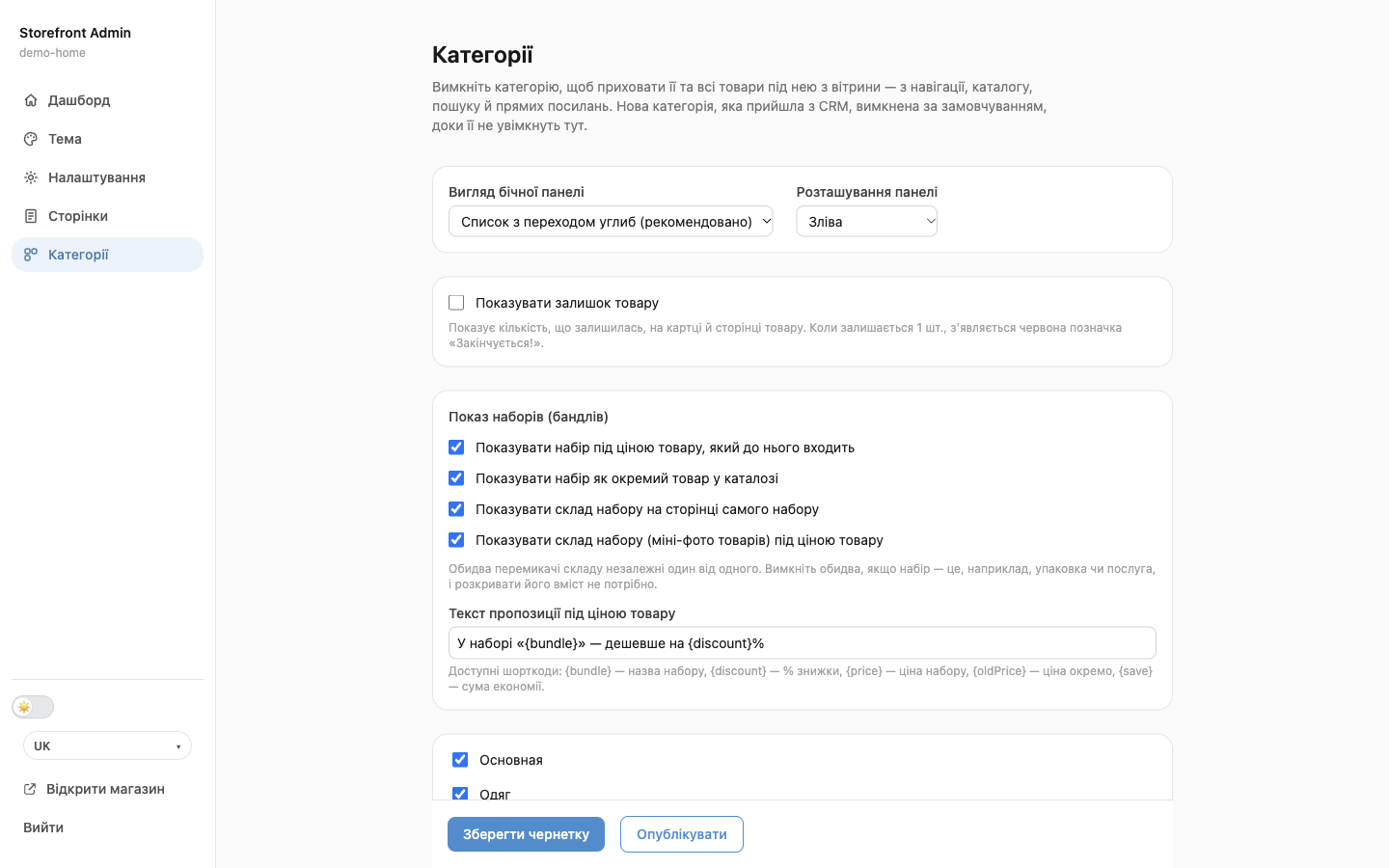
| Setting | Options |
|---|---|
| Sidebar style | “Drill-down list (recommended)”: shows one level of categories. Clicking a category with subcategories opens their list; a back button and the category itself appear at the top, so customers can view all its products at once. Good for large catalogs. “Expandable tree”: a classic tree where subcategories expand with an arrow. Handy for small catalogs with 2–3 levels. |
| Sidebar position | Left or Right of the products. On a phone, the Filters panel slides out from the same side. |
| Show category icons in sidebar | The category icon from HugeProfit next to the name. Off by default. |
| Filters above categories | By default, the sidebar shows categories first and filters below them. Turn this on to put filters at the top and categories below. |
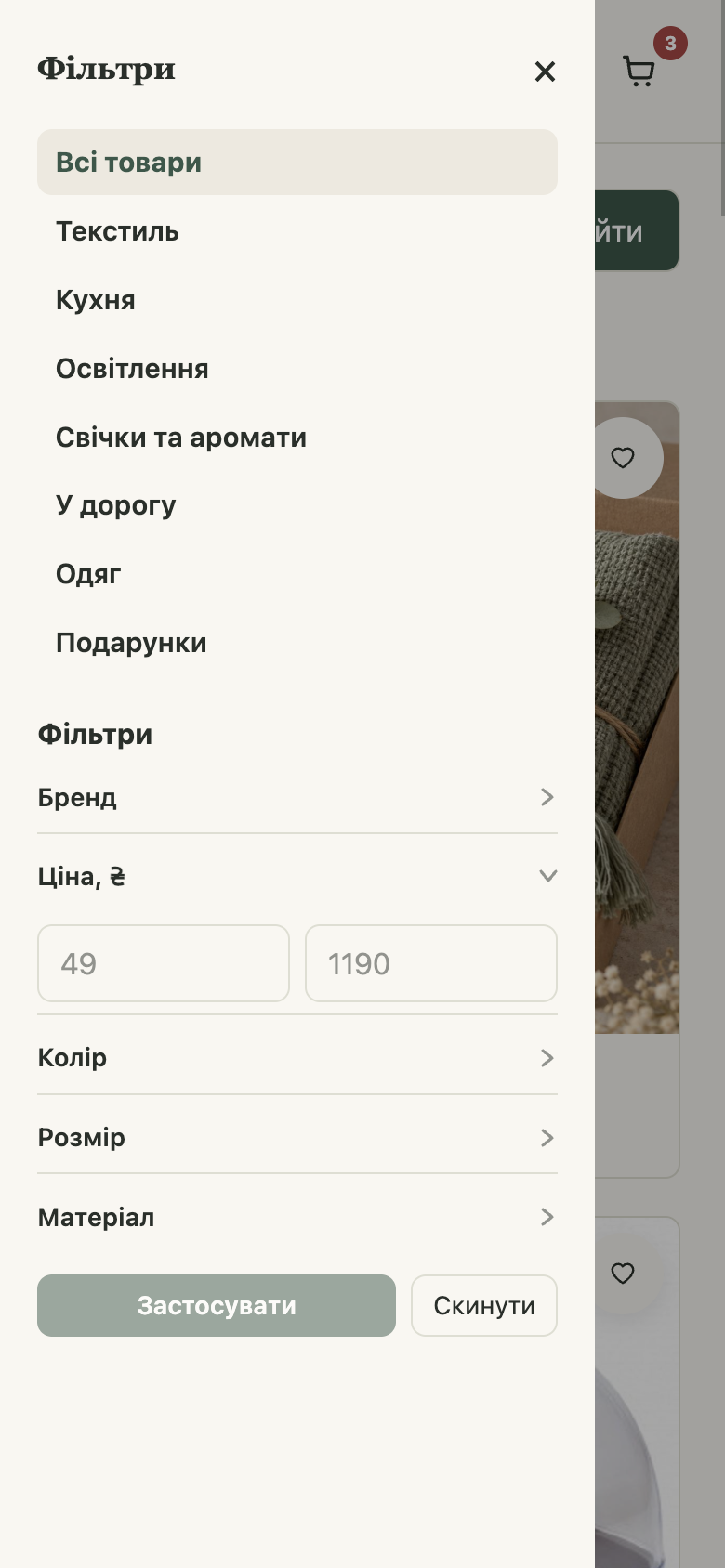
| Filter style | “Flat (always expanded)”: all filters are open, and values show as buttons. “Accordion (collapsible sections)”: each filter collapses and expands when you click its name. Only the price is open at first; the rest are collapsed. Values show as a checkbox list: the first 6, and the rest behind a “Show all” button. Each option has a small preview of how it looks. |
After making changes, click Save draft → Publish.
💡 The Show remaining stock quantity setting and bundle display are now on the Products tab, not in “Categories”.
Catalog filters
Filters are built automatically from your product data in HugeProfit:
- “Brand”: if products have a brand set;
- “Price, ₴”: from and to;
- variant attributes (color, size, and so on);
- product additional fields: only the ones you chose yourself (see below).
Each category shows only the filters and values that its products have.
How customers use them:
- Within one filter, customers can check several values, and a product with any of them matches. For example, checking “black” and “blue” for color shows both black and blue products.
- If values are selected in several filters, a product must match all of them at once. For products with variants, a single variant must match all selected attributes: size M and blue color means the blue size M variant.
- The Apply button applies the selection. The Reset button clears all filters.
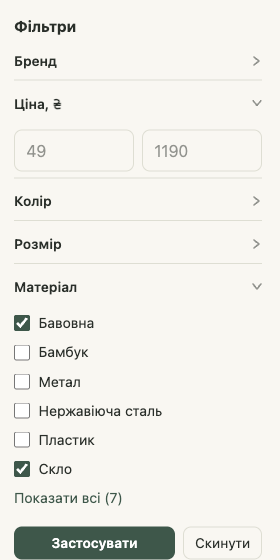
💡 To get color or size filters in the catalog, fill in product attributes in HugeProfit. For the brand filter to work, set a brand on your products.
Custom field filters
If you keep additional product fields in HugeProfit (for example, “Material” or “Country of origin”), you can show any of them on the site as a filter.
- Site editor → Products → the Custom field filters block.
- Click + Add filter.
- Choose an additional field from the list.
- Next to it, enter the filter name customers will see, for example “Material”. If you leave it empty, the field's own name is used.
- A list of all values of this field in your products appears below the row. Clear the checkbox for any value you don't want in the filter. New values that show up in products later appear automatically.
- Click Save draft → Publish.
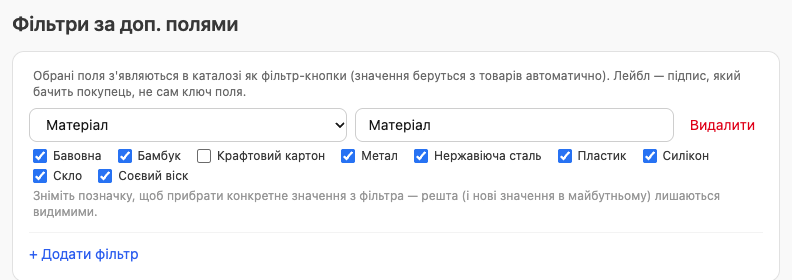
- You can add several filters. On the site, they come after brand, price, and attributes, in the order you added them.
- To remove a filter, click Delete in its row.
- A filter appears only where products have this field filled in. If the field isn't filled in anywhere yet, you'll see “No products in the catalog have a value for this field yet” under it.
- If your products have no additional fields at all, you'll see “No products have additional fields yet.” instead of the settings.
💡 Fill in values the same way in all products: “Linen” and “linen” become two different values in the filter.
What the catalog looks like to customers
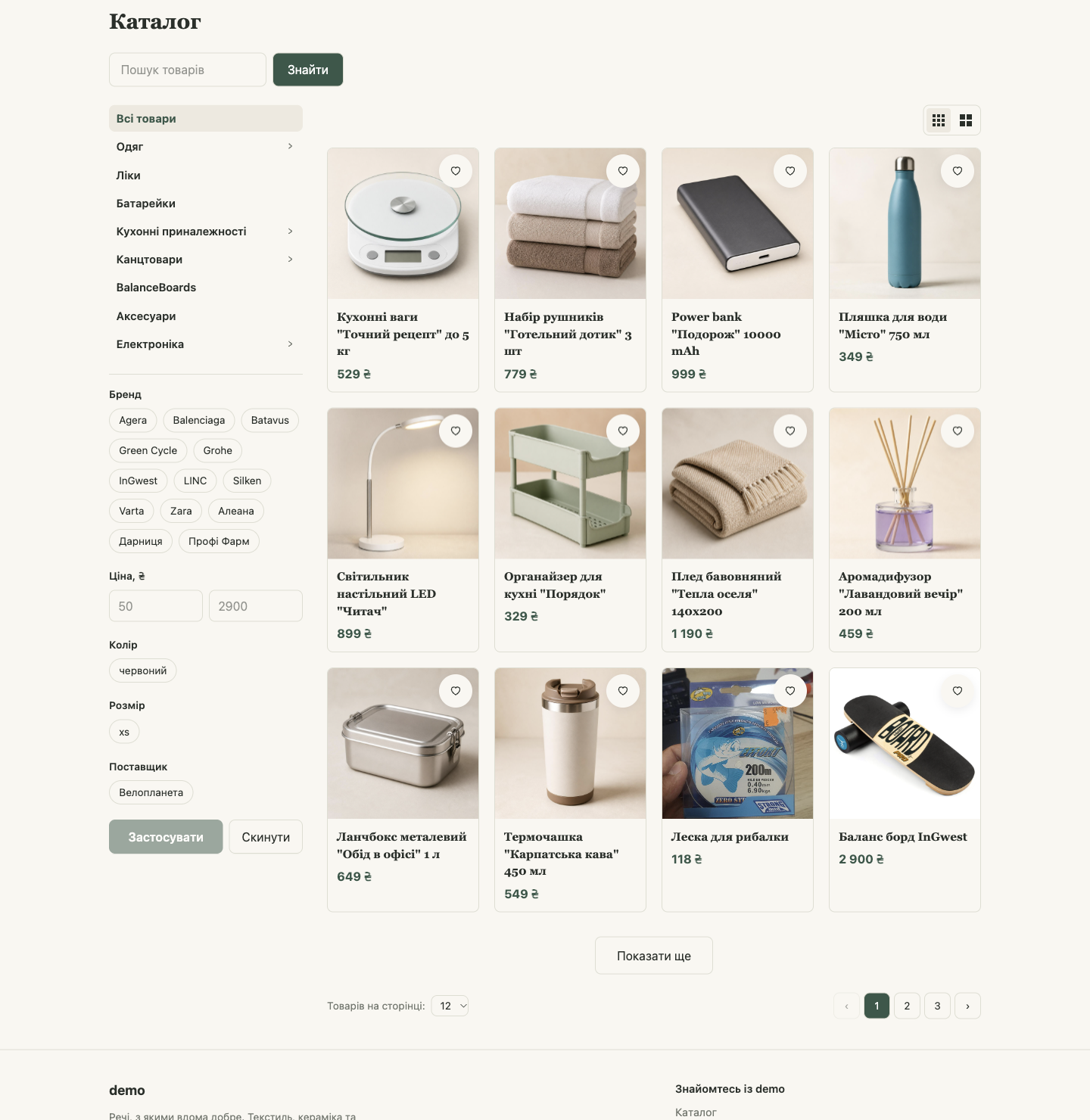
- Search: the “Search products” field above the products. It searches by name, description, SKU, and barcode (and by the additional field, if one is shown instead of the name). In the catalog, the search field sits on the same row as the view switch.
- Sidebar: categories and filters, in the order and style you chose in “Categories”.
- View switch: “Small cards” or “Large cards”. Available on computers only.
- Below the products:
- Show more loads the next products below the ones already shown;
- page numbers open the selected page in place of the current one;
- Products per page: 12 (default), 24, 48, or 96. After a change, the catalog returns to the first page.
💡 On the /catalog page, the “Product catalog” block heading isn't shown on screen: products start right at the top, level with the sidebar. On a category page, the category name and its path are still visible, as before.
On a phone
There's no sidebar on phones. Next to the search is a Filters button; the number in parentheses shows how many filters are on. It opens a panel with the same categories and filters as on a computer. Categories are also in the site menu (the burger button).
Bundles
If you have bundle products in HugeProfit (sets made of several products), the editor's Products tab has a Bundle display block:
- Show the bundle under the price of a product that's part of it: the product page shows a “cheaper in a bundle” offer with a button to add the bundle to the cart;
- Show the bundle as its own product in the catalog;
- Show what's inside on the bundle's own page: a “This bundle includes” list;
- Show what's inside (mini thumbnails) under the component's price;
- Offer text under the component's price: you can change it. Placeholders:
{bundle}is the bundle name,{discount}is the discount percentage,{price}is the bundle price,{oldPrice}is the price when bought separately, and{save}is how much the customer saves.
💡 If your “bundle” is really, for example, packaging or a service and you don't need to reveal what's inside, turn off both contents toggles.