Site editor sign-in and staff access
You change the storefront's design, pages, and settings in the site editor (admin panel). It has no separate login or password: you sign in only through a link from HugeProfit. This is convenient and secure, since you can grant access for a set period and revoke it anytime.
How to sign in to the editor
Use either of these:
- Online store → the Edit website button on the store card;
- Online store → Settings → Open admin panel.
The editor opens in a new tab at your-store.h-profit.shop/admin. If nothing opens, allow pop-ups for the HugeProfit site in your browser.
💡 If you open /admin directly, without signing in through HugeProfit, you'll see “Page not found”. This isn't an error but a safeguard: sign in with the button in HugeProfit.
The sign-in is kept in the browser for up to 30 days. In another browser or on another device, sign in again the same way.
What's in the editor
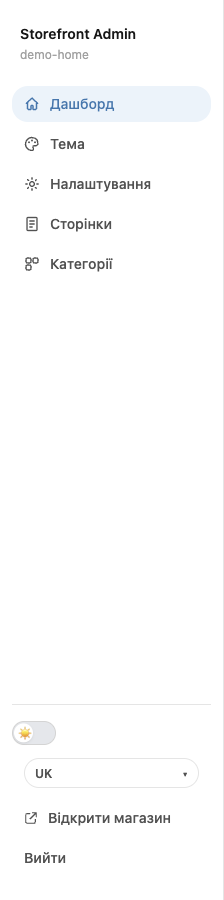
- Dashboard: number of pages, products, and categories, plus quick links.
- Theme: colors, fonts, dark mode.
- Pages: the page builder.
- Settings: logo, menu, footer, contacts, payment and delivery methods, private access with a code (details).
- Products: stock display, what to do when a product runs short, bundles, filters by custom fields, default product in the cart (packaging).
- Categories: which categories to show on the site, catalog layout.
- Analytics: connecting Google Analytics, Google Tag Manager, and Facebook Pixel (details).
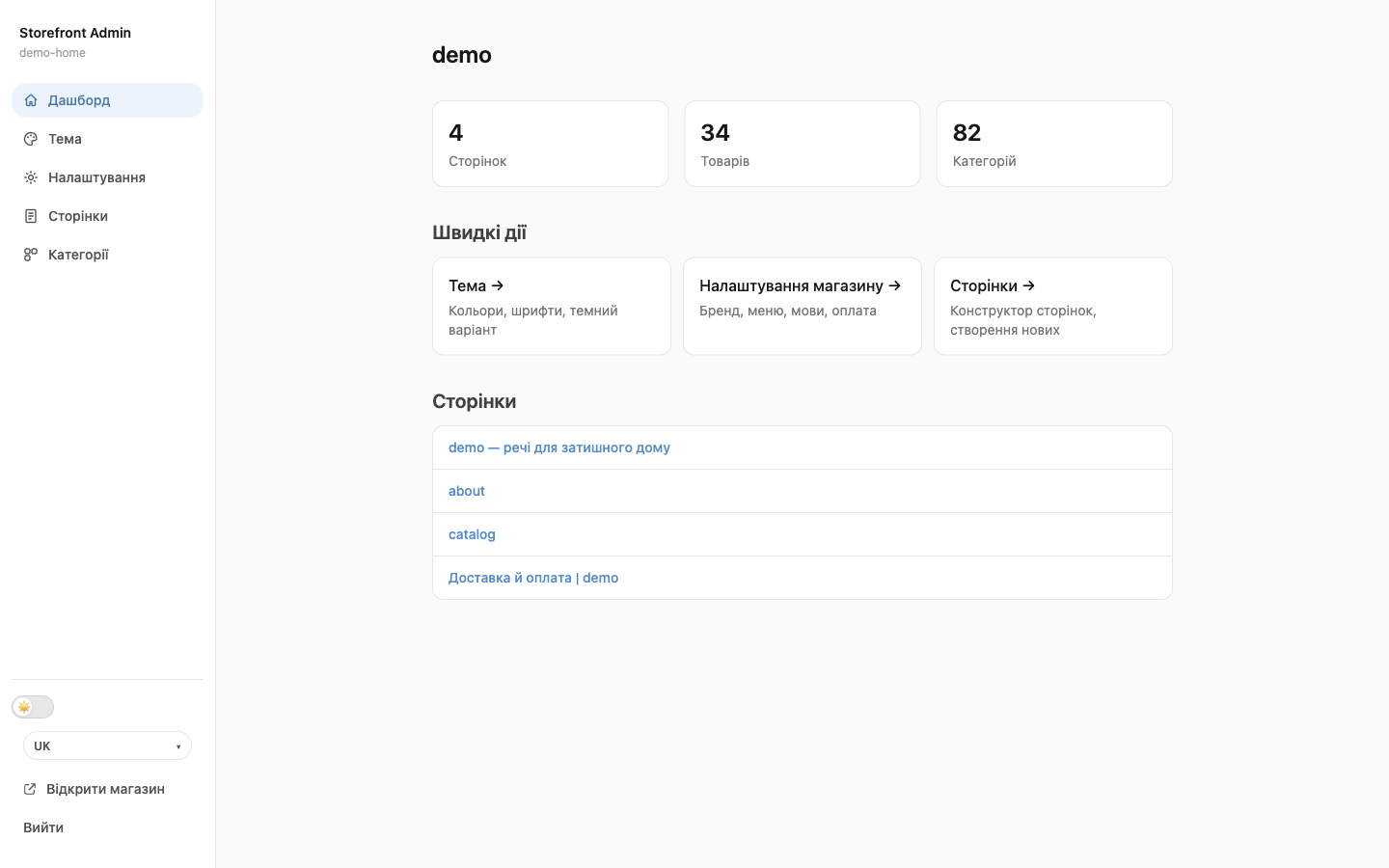
At the bottom of the menu: a light/dark switch for the editor itself (doesn't affect the site), the editor language (UK / RU / EN), Back to CRM, Open store, and Log out.
Access for employees and contractors
Only the account owner sees the editor sign-in buttons. Give an employee, designer, or marketer a personal link:
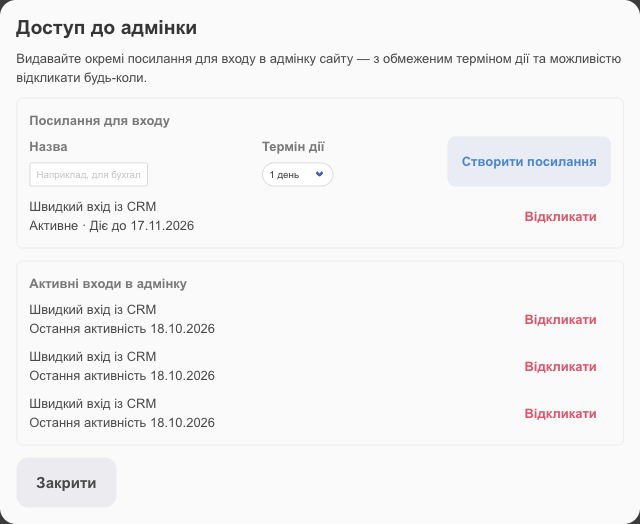
- Online store → Settings → Admin access.
- In the Label field, write who the link is for, for example “Designer”.
- In the Expires in field, choose 1 hour, 1 day, 7 days, 30 days, or 90 days.
- Click Create link.
- Copy the link with the button on the right and send it to the person.
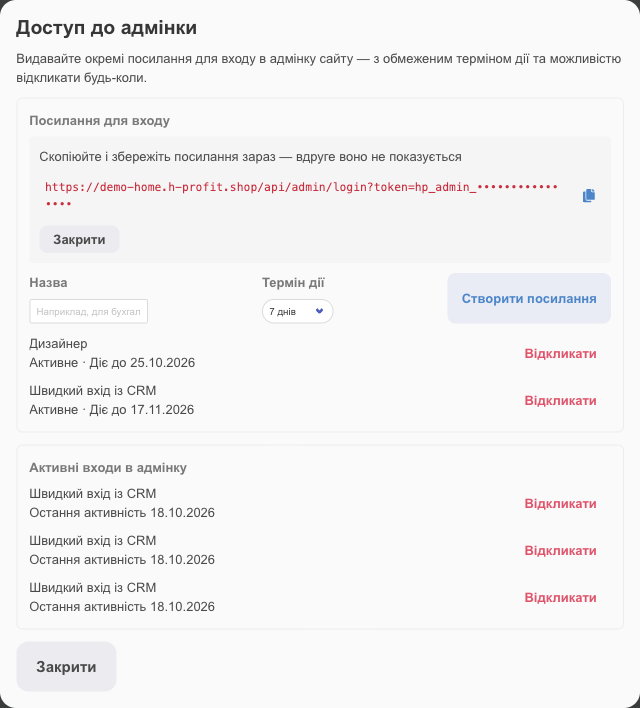
⚠️ The link is shown only once. If you lose it, just create a new one and revoke the old one. Don't post the link in public chats: anyone who has it can change your site until it expires.
How to revoke access
- In the Sign-in links list, click Revoke next to the link and confirm. Everyone who has it loses access immediately. The link's status changes to Revoked.
- The Active admin logins list shows who is signed in now and when they were last active. Revoke here ends a specific session (for example, on someone else's computer).
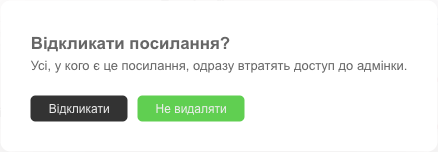
Link statuses: Active means it works; Expired means its validity period is over; Revoked means you revoked it. The “Quick sign-in from CRM” entry is the sign-in through the Edit website / Open admin panel buttons; you can revoke it too.