Default product in the cart (packaging)
Set up a default product to have packaging counted in orders and written off from stock when you pack every order in a branded box or bag. The store adds it to the cart on its own when the customer adds other products, and it goes into the order in HugeProfit as a regular line item.
How it works
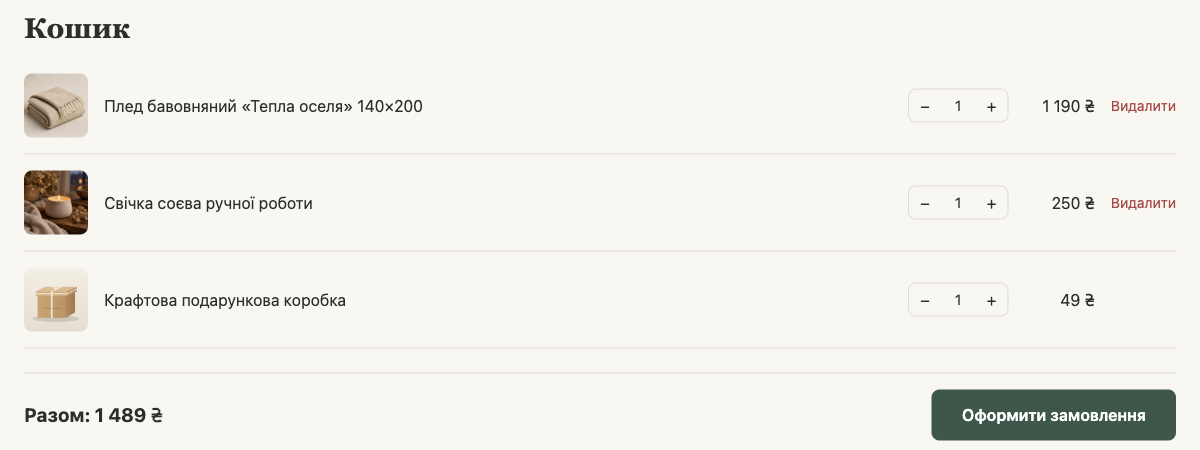
- The customer adds any product to the cart, and the default product (for example, a box) appears in the cart on its own.
- It counts toward the total and the number of items like a regular line item, at the price from the product card in HugeProfit.
- The customer can't remove it separately. It disappears on its own when no other products are left in the cart or the rule's conditions are no longer met.
- The customer can change the packaging quantity with the "−" and "+" buttons (for example, if they need two boxes), but not below 1.
- In the order in HugeProfit, the packaging is a separate line, so it's written off from stock and counted in cost price and profit.
Prepare the product in HugeProfit
- Create a product in HugeProfit, for example "Kraft gift box", with a sale price and a photo. The price can be nominal (for example, 1 UAH) if you don't want to charge separately for packaging. You can't set a zero price: a product without a price isn't shown in the store.
- Receive stock of it into the warehouse linked to the store.
- The product must be visible in the store, meaning it's in a category that's turned on in the site editor's Categories (or has no category). Otherwise, the rule's search won't find it. For details, see Categories and catalog layout.
How to create a product is covered in Product card.
How to set up a rule
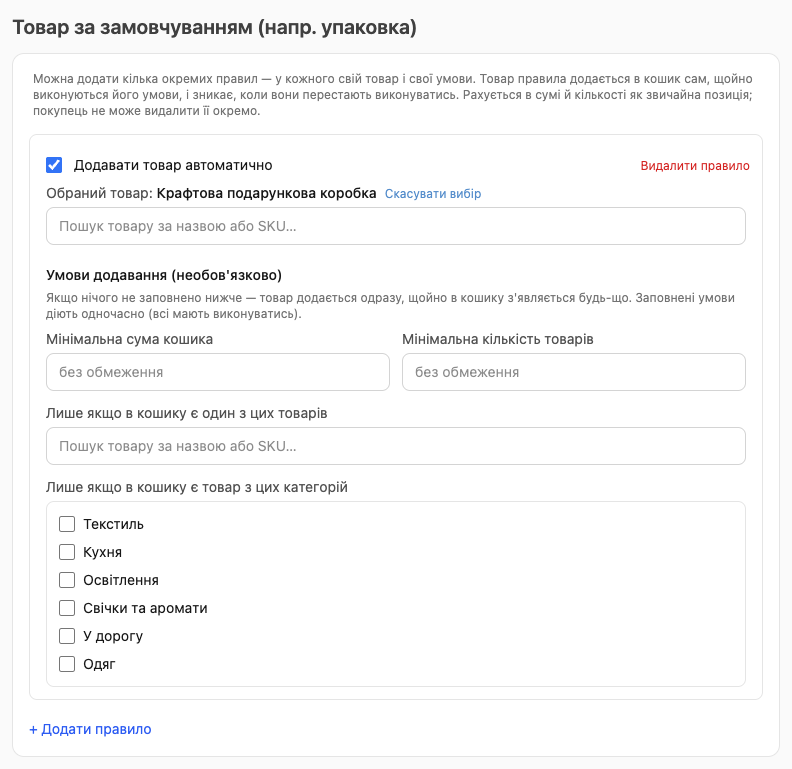
- Open the site editor → Products and scroll to the Default item (e.g. packaging) section.
- Click + Add rule.
- Start typing the product's name or SKU in the search field and select it from the list. It appears in the Selected product line.
- Make sure Add the item automatically is turned on.
- Set conditions if needed (see below). If no conditions are filled in, the product is added to any cart.
- Click Publish.
Conditions for adding
All conditions are optional. Every condition you fill in must be met at the same time.
| Condition | When the product is added |
|---|---|
| Minimum cart subtotal | When the other products in the cart cost at least this much. The packaging itself isn't included in this amount. |
| Minimum item quantity | When the cart has at least this many units of other products. |
| Only if the cart has one of these products | When the cart has at least one of the selected products. |
| Only if the cart has a product from these categories | When the cart has a product from one of the checked categories. |
If both products and categories are selected, a match with any of them is enough.
Examples:
- A box with every order: a rule with no conditions.
- A gift bag for textiles: the "Textiles" category.
- A large crate for wholesale orders: Minimum item quantity: 10.
Multiple rules
You can add several independent rules, each with its own product and conditions. All rules whose conditions are met add their products to the cart at the same time. For example: a box with every order and a greeting card with orders of 1,500 UAH or more.
To turn a rule off temporarily, uncheck Add the item automatically. To remove it entirely, click Remove rule. Don't forget to publish your changes.
FAQ
Can I give packaging away for free?
There's no separate "free" toggle: the product is added at its price from HugeProfit. If you don't want to charge for packaging, give it a minimal price, for example 1 UAH.
What happens when packaging runs out in stock?
When the packaging stock in the store's warehouse reaches exactly 0, the store stops adding it to the cart: the rule silently won't fire, and orders will be placed without packaging. Keep an eye on packaging stock in HugeProfit and restock it in time.
Will customers see the packaging in the catalog?
Yes, if its category is shown in the store, as a regular product that can be bought separately. If you don't want that, put the packaging in a separate category (for example, "Packaging"). Once the product is selected in the rule, you can turn that category off in Categories, and the rule will keep working. But to select the product in a rule again, you'll have to turn the category back on temporarily.
What does packaging look like in an order?
Like a regular line item with a name, price, and quantity. For more about orders, see Orders from the store.