
How to create and print a Nova Poshta waybill in HugeProfit
You can create a Nova Poshta waybill (TTN) right from a sale in HugeProfit, without opening your Nova Poshta account: the client's details, the branch, and the COD amount are filled in from the sale. You print the parcel label right there (in bulk, too), and HugeProfit tracks the waybill and updates the sale status when the parcel is on its way, at the branch, or picked up.
One-time setup
- Nova Poshta integration. Paste the API key from your Nova Poshta business account in Settings → Integration → Delivery → Nova Poshta. Step by step: see the Nova Poshta article. It also covers senders, automatic parcel descriptions, and multiple keys (several sole proprietors).
- Sender. Your contact and the branch you ship from. You can have several senders and assign each to employees, sales channels, or warehouses; HugeProfit then picks the right one automatically (how to set it up).
💡 Without the integration, you can simply enter a waybill created in the Nova Poshta app or account into the sale, and HugeProfit will still track the parcel. But to create and print a waybill from HugeProfit, you need a connected key.
1. A sale shipped by Nova Poshta
Open the sale window (+ Sale) → the Delivery tab:
- Delivery Service: Nova Poshta;
- client: last name, first name, and phone are required for a waybill;
- branch, parcel locker, or address: HugeProfit remembers them in the client's card and fills them in next time;
- Account: C.O.D if the client pays on delivery, or the account they've already paid to.
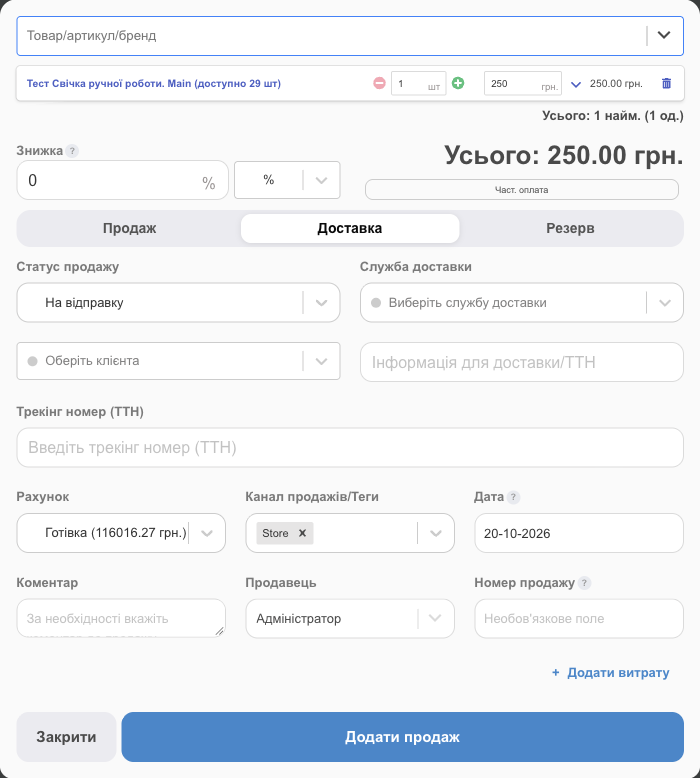
Orders from your website or a marketplace already include delivery details; you confirm them in Orders. For more on sales with delivery, addresses, and prepayment, see Delivery and waybills.
2. Create the waybill
- Sales → the Awaiting dispatch tab → in the sale row, 🚚 Send parcel/Finish → Create NovaPoshta shipment label. You can also do this in the sale window, with the button next to the Tracking number (waybill) field.
- Check the form. The recipient, branch, and amount are already filled in from the sale:
Field What to enter Sender Your contact and shipping branch. If you have several senders, choose the right one. Client, branch / address The recipient can differ from the buyer (a gift); ✎ edits the details. Parcels and cargoes / Documents Shipment type; Add parcel adds more boxes. Weight, Dimensions For a single box, you can skip dimensions; minimum standard ones are sent. Who pays for delivery Sender or recipient; cash or non-cash. Declared value / Remittance / Payment Control Already paid: Declared value. COD: Remittance or Payment Control (money goes to your bank account; requires a contract with Nova Poshta). The COD amount is filled in automatically. Description What's in the parcel, up to 120 characters. It can be filled in automatically from product names. 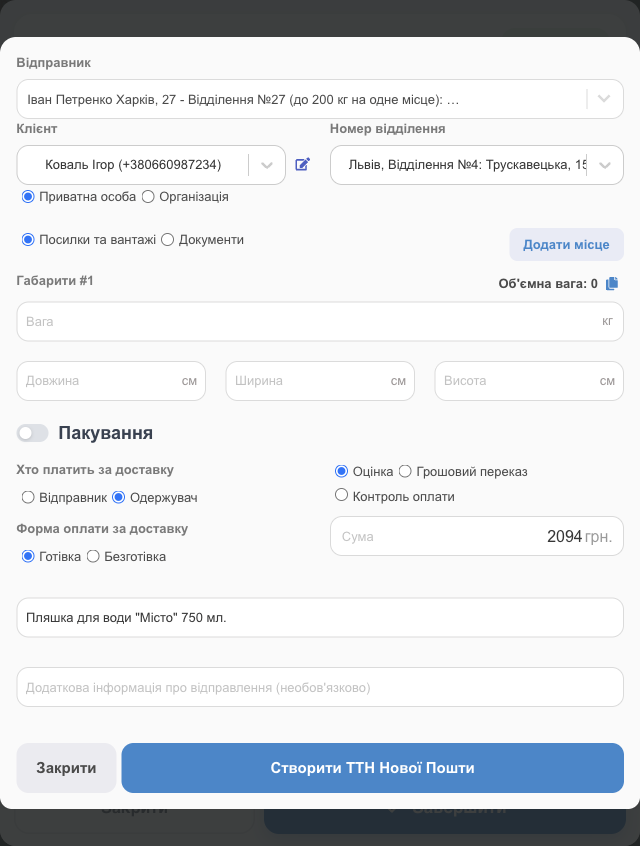
- Click Create NovaPoshta shipment label. The Waybill created successfully! window shows the waybill number, delivery type, Shipping cost, and Estimated delivery date. Add to expenses records the shipping cost as a sale expense if you pay for delivery.
- Done saves the waybill number to the sale, and the sale moves to On delivery.
⚠️ Check the delivery type in the window after creation: if you expected COD but see Delivery: Declared value, the branch won't collect payment for the goods from the client. Cancel that waybill in your Nova Poshta account and create a new one.
Waybills are created from each sale one at a time. If you prefer creating waybills in the Nova Poshta account or app, enter the ready numbers into the sales, in bulk if needed (see “Waybill numbers for many sales” below).
3. Print the label
Printing gives you a 100×100 mm label in PDF: a sticker with a barcode for the parcel. Print it on a thermal label printer, or on a regular printer and cut it out.
- Right after creation: the Printing button in the Waybill created successfully! window.
- Later: in the sales list, next to the waybill number, there's a print icon and Open waybill (PDF in a new tab).
Bulk waybill printing
- In Sales, check the sales that have waybills (the checkbox in the header selects everything on the page).
- On the action bar, click Printing Tracking #.
- Up to 100 waybills print as one PDF file. If you select more, HugeProfit splits them into batches (“1 - 100”, “101 - 200”), and you can open or print each one separately.

One file can include waybills from different carriers, for example Nova Poshta and Ukrposhta.
Waybill numbers for many sales
If you created the waybills in your Nova Poshta account, enter them into the sales together: select the sales → Status → Send parcels → in each sale row, enter the Tracking number (waybill). The sales move to On delivery, and HugeProfit starts tracking them.
4. Courier pickup
To have a Nova Poshta courier pick up the parcels, click Create courier pickup in the created waybill's window. Pickup address settings are covered in the Nova Poshta article.
5. Tracking Nova Poshta waybills
HugeProfit checks each waybill about every 30 minutes and updates the sale status on its own:
| Parcel status | Sale status |
|---|---|
| Accepted, in transit | On delivery |
| Arrived at a branch or parcel locker | Waiting at the branch |
| Picked up by the client | Sold, or Collect COD for cash on delivery |
| Client refused or didn't pick it up | Refusal to receive |
- Click the waybill number in the sale row to open a panel with the parcel details: status, route, weight, declared value, shipping cost, and, for a parcel at a branch, the paid storage start date and auto-return date. 👁 opens tracking on the Nova Poshta website.
- If the parcel is redirected (for example, the client changed the branch in the Nova Poshta app), HugeProfit switches to the new waybill and tracks that one.
- The “Paid storage is coming soon” and “Auto-return is coming soon” labels above the sale remind you to call the client before the parcel goes back. You can also turn on reminders in notifications.
6. Cash on delivery
Once the client pays for the parcel, the sale appears on the Collect COD tab. When the money from Nova Poshta arrives, click Collect COD and choose the account it went to; you can do this for many sales in one transfer. Step by step: Delivery and waybills: collecting COD.
What HugeProfit doesn't do with waybills
- Returns and redirection are arranged in the Nova Poshta app or account. HugeProfit only sees the changes in tracking. When the parcel comes back, record a return in HugeProfit so the item goes back to stock.
- Bulk waybill creation: waybills are created one at a time, from a sale. In bulk, you can print labels and enter ready numbers.
- Other print formats: only the 100×100 label in PDF.
FAQ
| Question | Answer |
|---|---|
| There's no button to create a Nova Poshta waybill | The sale doesn't have Nova Poshta selected as the carrier, or the integration isn't connected or is deactivated. Check Settings → Integration → Delivery. |
| “Unfortunately, you are not linked to any delivery service” | The employee doesn't have access to any sender. An administrator adds them in the sender's Access (optional) block. |
| The sale status doesn't change | The status updates about every 30 minutes. Check the waybill number and that the sale isn't in one of your custom statuses marked “Final status”. |
| How do I ship from another sole proprietor? | Add another Nova Poshta integration with the other proprietor's account key and choose the sender in the waybill form. |
| The label prints at the wrong size | The file is 100×100 mm. In the print dialog, choose your label paper size and 100% scale. |
For an overview of the features, see CRM with Nova Poshta integration.