
How to connect Epicentr to HugeProfit
The integration with the Epicentr marketplace (epicentrm.com.ua): Epicentr orders arrive in HugeProfit, confirmations, waybills, and cancellations with a reason go back, and availability and prices are updated from your warehouse. New products are uploaded to Epicentr with an XML feed in Epicentr's template, using your category mapping. To connect, you need an API token from your Epicentr seller account.
What syncs
| What | How it works |
|---|---|
| Orders | From Epicentr to HugeProfit, with the buyer, delivery, and payment. The product is reserved for the order. |
| Statuses and waybills | From HugeProfit to Epicentr: confirmation, a Nova Poshta or Ukrposhta waybill, cancellation with a reason. After that, Epicentr tracks the delivery itself. |
| Availability and prices | From HugeProfit to Epicentr for linked products: “in stock”, “made to order”, or “out of stock”, the price, and the old price. |
| New products | With an XML feed: you paste a link from HugeProfit into your Epicentr account. Epicentr doesn't allow creating products through the API. |
1. A token in your Epicentr account
In your Epicentr seller account, open Company settings → API.
Generate a token and copy it. The token starts with mp_.
💡 No API tab? Your Epicentr category manager enables it: tell them you're connecting a CRM through the API.
2. Connecting in HugeProfit
Settings → Integration → Marketplaces → Epicentr → Connect.
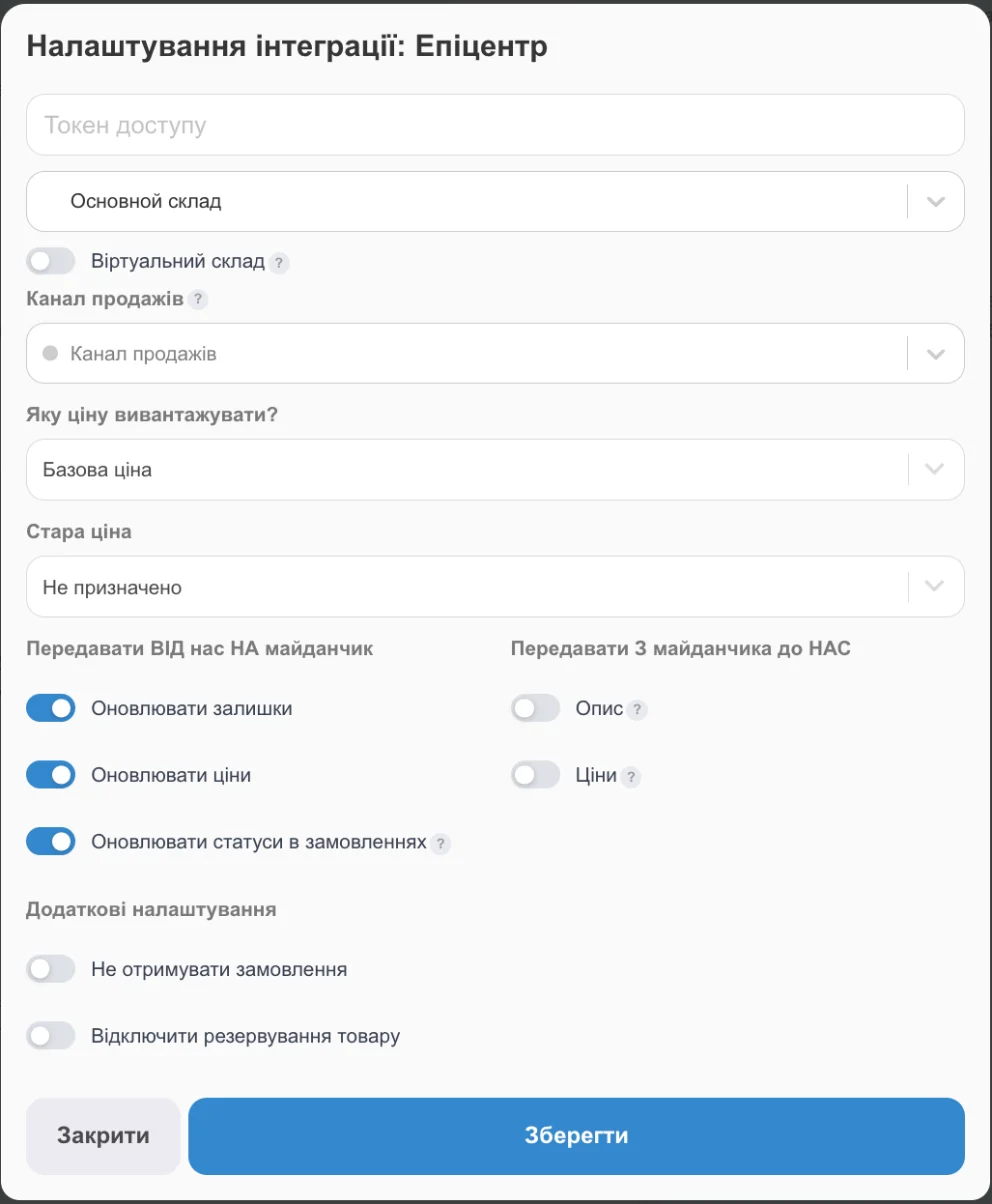
- Access token: the token from your Epicentr account.
- Warehouse: availability and prices for Epicentr and products for the feed come from it, and orders are deducted from it. You can't change the warehouse after saving.
- What price to upload?: the base price or one of the additional prices. Epicentr accepts prices only in UAH.
- Old price: which additional price to send as the crossed-out price. It's sent only if it's higher than the selling price.
- Update Stock and Update Prices: send availability and prices to Epicentr.
- Update order statuses: send confirmations, waybills, and cancellations. Without this checkbox, the waybill won't reach Epicentr.
- Virtual warehouse, Sales channel, Do not receive orders, Disable product reservations: same as for Prom.
After saving, HugeProfit offers Download XML: this is the feed for your Epicentr account (step 3). The connected integration card gets the Configure category mapping and Download a list of statuses buttons. There's no button to import products from Epicentr: Epicentr doesn't provide your product list through the API.
3. Products to Epicentr: the XML feed
HugeProfit builds the feed in Epicentr's template: categories and attributes are filled in with codes from Epicentr's directories, so the product arrives in your account with its category, brand, and attributes already set.
Category mapping
Configure category mapping is on the integration card and in the XML download window.
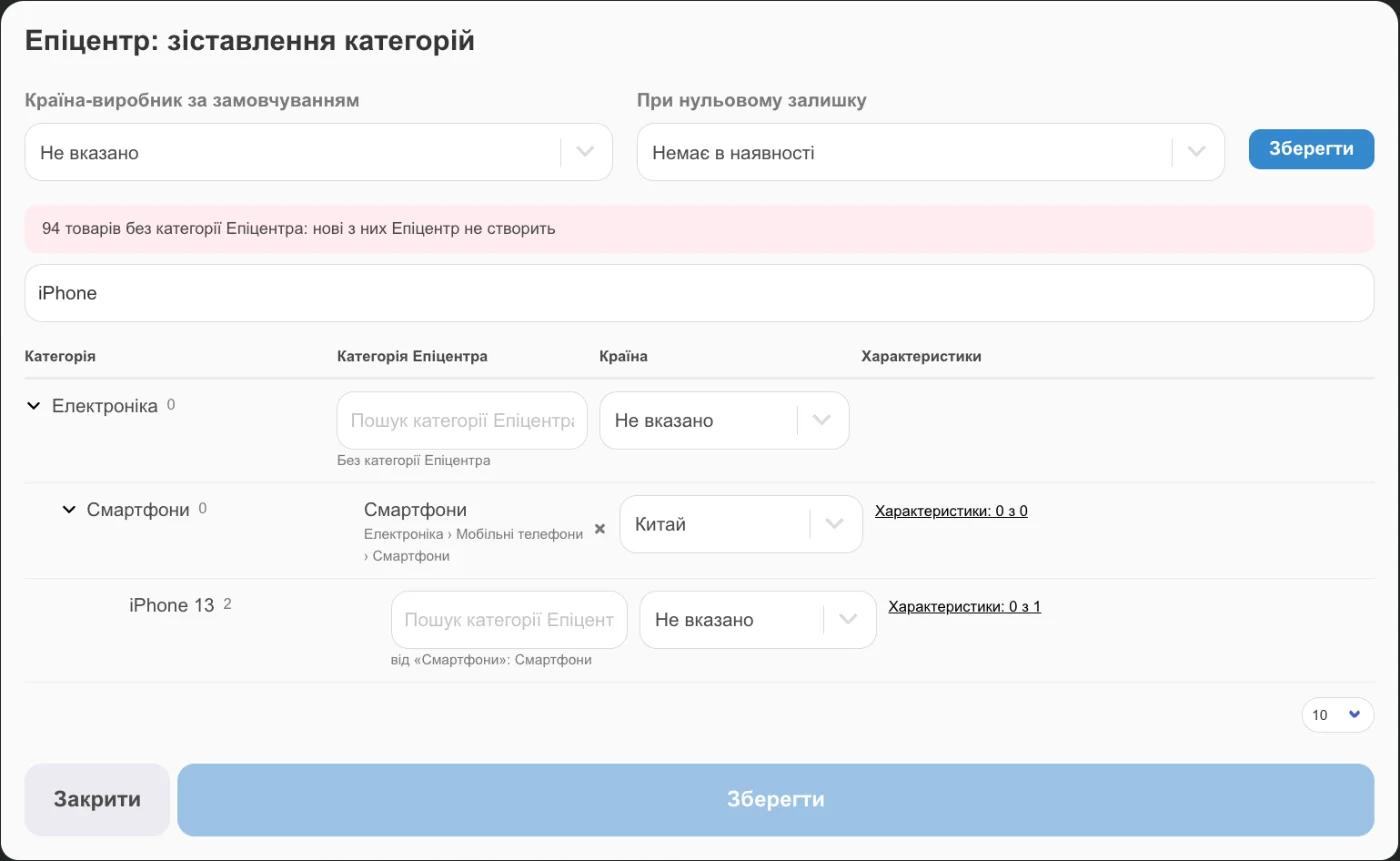
- For each of your categories, search for the final (leaf) Epicentr category. A subcategory without its own mapping takes the category of its nearest parent, as shown under the field: “from “Smartphones”: Smartphones”.
- Country: the country of origin for the category's products. If it's not set, the Default country of origin is used.
- Attributes: 2 of 5: how many of the Epicentr category's attributes were found in your products. Click to see which have no match on Epicentr and which are Missing for moderation. Attributes are matched by exact name: the product attribute or additional field must have the same name as the attribute on Epicentr.
- When stock is zero: Out of stock or Made to order. It applies both to the feed and to availability updates through the API.
The red banner … products have no Epicentr category means these products still go into the feed, but Epicentr won't create the new ones among them. They will update products that already exist on Epicentr.
The feed link
- Products → the integration warehouse tab → the export icon to the right of the search → XML (see Importing and exporting products).
- Type XML: Epicentr → Open. Copy the address of the page that opens: it's a permanent feed link with up-to-date stock and prices.
- In your Epicentr account: Products → Import → the Link method, Update all mode.
- Add the same link to Auto stock update so Epicentr updates prices and availability on a schedule.
What goes into the feed:
- SKU: Epicentr uses it to find the product in your account. Products without an SKU aren't included in the feed.
- Name (up to 150 characters), description, photos, price, old price (if the product has a sale price lower than the regular one), brand (if it's in Epicentr's directory), country, unit of measure, dimensions and weight, barcode, attributes.
- Availability: stock above zero is in stock; otherwise, it follows the When stock is zero setting.
⚠️ New products appear in your Epicentr account with the “Draft” status. Check them, fill in the required attributes, and send them for moderation; Epicentr publishes them. Variants (color, size) aren't grouped by the file: each variant arrives as a separate product, and you group them manually in your Epicentr account.
4. How Epicentr products link to yours
Availability and prices are updated through the API only for products linked to the integration. A link appears in these ways:
- From an order. When a product first arrives in an Epicentr order, HugeProfit looks for it in the integration warehouse by SKU, then by name, and links it. So it's easiest when SKUs on Epicentr and in HugeProfit are the same, which is the case if the products got to Epicentr from the HugeProfit feed.
- From an account export. Export your products to XLSX in your Epicentr account and import the file into HugeProfit as a regular Excel file (Importing from Excel). HugeProfit recognizes the Epicentr export by its headers and links products by the Epicentr id column. This works if you have one Epicentr integration connected. Attributes from the file become the product's additional fields.
- Manually: see Product linking.
Until a product is linked, orders for it still arrive, but its availability and price on Epicentr are updated only by the feed.
5. Orders, statuses, and waybills
New Epicentr orders appear in Orders with the “New” status. Epicentr reveals the buyer's name and phone only after the seller confirms the order, so a new order doesn't have them yet.
- Confirmation. Move the order to the “Confirmed by seller” status or to your status mapped to it. HugeProfit sends the confirmation and, within a minute and a half, reloads the order with the buyer's contacts.
- Waybill. Create a Nova Poshta waybill or an Ukrposhta waybill in the sale, or enter a ready number. HugeProfit moves the order on Epicentr to “Confirmed” and records the waybill there.
- Then it's up to Epicentr. Epicentr tracks the waybill itself and sets “Shipped” when the parcel is handed to the carrier and “Completed” when the buyer picks it up.
Check how your statuses map to Epicentr's with the Download a list of statuses button and the gear next to it on the integration card. Statuses that Epicentr doesn't have (“Sold”, “Refusal”, your own) change only in HugeProfit.
⚠️ Through the API, Epicentr accepts waybill numbers only for Nova Poshta and Ukrposhta. For Meest and Meest-Epicentr pickup points, create the shipment in your Epicentr account.
Cancellation with a reason
When you cancel an Epicentr order or sale, choose a reason: Out of stock, Price is outdated, Defective product, Delivery unavailable, or Order is no longer relevant. HugeProfit sends the cancellation with this reason to Epicentr.
Troubleshooting
| Problem | What to do |
|---|---|
| Authorization error, the integration turned off | The token was deleted or regenerated in your Epicentr account. Generate a new one and paste it into the integration settings. |
| A product didn't appear in your Epicentr account | Check that the product has an SKU and that its category is mapped to an Epicentr category. Look at the import report in your Epicentr account: it shows which attribute is missing. |
| Availability or price on Epicentr didn't update | Check the Update Stock and Update Prices checkboxes and that the product is linked to the integration. Epicentr accepts an identical update again only after 30 minutes, so a quick change back and forth may arrive with a delay. |
| The order has no buyer name or phone | The order isn't confirmed yet. Confirm it: the contacts appear after the order reloads. |
| The waybill wasn't sent | Turn on Update order statuses. Epicentr doesn't accept Meest waybills through the API. |
| A currency warning in category mapping | Your account currency isn't UAH, but Epicentr accepts prices only in UAH. The feed sends prices without conversion, so keep prices for Epicentr in UAH. |
Selling beyond Epicentr? In HugeProfit, orders from Epicentr, Prom, Rozetka, Kasta, and your website land in one list, stock is deducted from one warehouse, and the waybill is created from the sale and sent to Epicentr automatically. Learn more about marketplace automation.