
Settlements with customers and suppliers in HugeProfit
The Settlements section tracks money customers paid in advance and advances you paid to suppliers. A customer can pay for a sale from their balance, keep the change on it, or settle several debts with one payment. You pay a supplier an advance, pay shipments from it, and pay for several shipments with one amount. The net balance in the card shows who owes whom.
How to turn it on
Settings → System modules → Settlements. The section is off by default. Only the account owner can turn it on; HugeProfit then creates two system accounts:
- Customer balances: customers' money received in advance;
- Supplier advances: your money paid to suppliers in advance.
Neither account counts toward your total money or appears in the regular account lists. Money moves on them only from the customer and supplier cards, from a sale, and from a shipment payment. An employee sees the section if Settlements is turned on in their permissions (Employees and permissions).
💡 The customer balance is money. Loyalty program bonuses are a separate account, labeled Bonus in the card (Client discounts).
Customer balance
In the client card, a balance block appears below the totals:
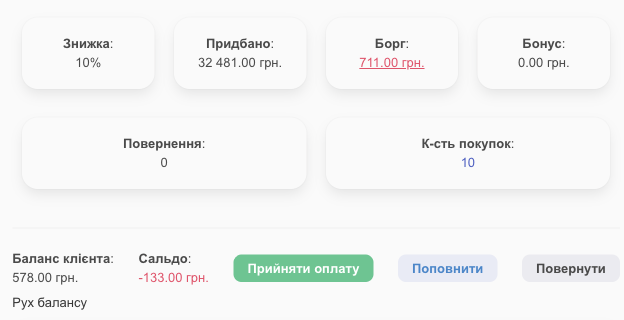
- Customer balance: how much of the customer's money you hold (an advance or overpayment).
- Net balance: the balance minus the debt for sales on the Not paid account. Negative means the customer owes you; positive means you owe the customer.
- Top up: the customer paid in advance. Enter the amount and the account the money came to.
- Pay out: give the customer money from the balance. The button appears when the balance is above zero; you can't pay out more than the balance.
- Balance history: top-ups, payouts, and sales paid from the balance.
The client list has a Customer balance column you can sort by.
Paying for a sale from the balance
When the sale window has a customer with money on their balance, you see Customer balance and the Pay from balance switch next to it. The same is available in the cashier panel.
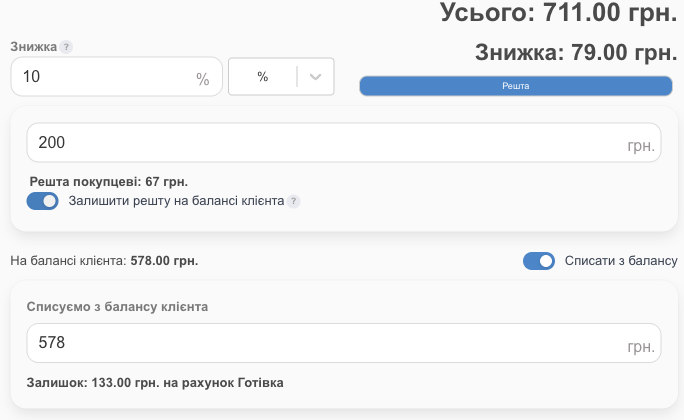
- Turn the switch on: the Paid from client balance field shows the amount available for this sale. You can lower it.
- If the balance covers the whole sale, the sale is paid entirely from the balance.
- If it doesn't, the customer pays the rest as usual: the Balance line shows how much is left and which account it goes to.
- You can't take more than the balance holds: HugeProfit shows “Not enough money on the customer balance”.
If you delete a sale paid from the balance or process a return, the money goes back to the customer balance.
Change to the balance
The customer gave more than needed and asks you to keep the change? Click Change, enter the amount received, and turn on Keep the change on customer balance. The change goes to the balance and can pay for the next purchase. The switch appears only when the sale has a customer.
Receive payment: settle debts with one payment
The customer bought on credit several times and sent one amount? In the client card, click Receive payment and enter the amount and the account the money came to.
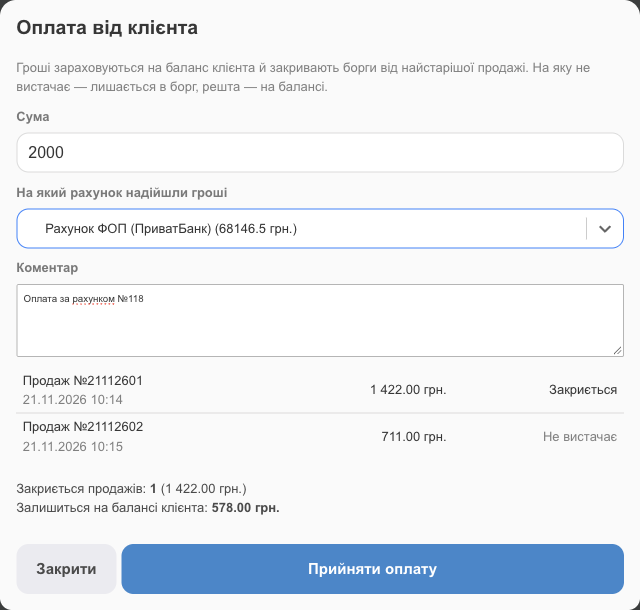
- The money goes to the customer balance and closes sales on the Not paid account, starting with the oldest. Before you save, the window shows which sales Will be closed and which have Not enough.
- A sale is closed only in full. One the amount doesn't fully cover stays in debt, and the money stays on the balance. When the customer pays the rest, receive it the same way: HugeProfit also uses what's already on the balance.
- If the customer paid more than they owe, the rest stays on the balance.
- Reserves (Reserve — close separately) and sales in another currency (Other currency) aren't closed by this payment.
You can still close a single credit sale by changing the account in the sale row (Accounts and transactions).
Fiscalization
- A sale paid entirely from the balance isn't fiscalized: no new money came into the till.
- If part of a sale is paid from the balance, that part appears in the fiscal receipt as a “Prepayment” discount, and only the rest is the payment. No separate prepayment receipt is issued for the part paid from the balance.
- Topping up the balance and Receive payment don't create a receipt by themselves. If you need one, issue it manually (Software cash register).
Supplier advances
In the supplier card (Shipments → Suppliers → the supplier's name), an advance block appears:
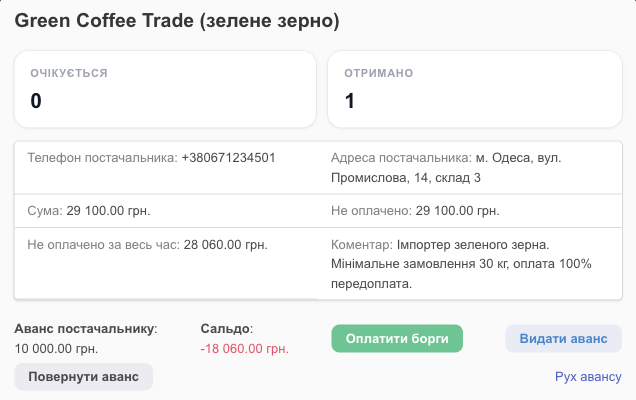
- Supplier advance: your money held by the supplier (an advance or overpayment).
- Net balance: the advance minus the debt for shipments. Negative means you owe the supplier; positive means they owe you.
- Pay advance: the amount, the account you pay from, and a comment (for example, the supplier's invoice number).
- Return advance: the supplier returned money; enter the account it came to.
- Advance history: advances paid, returns, and shipments paid from the advance.
In the supplier list, the Supplier advance appears under the debt.
An advance is a transfer, not an expense. In reports, it becomes a purchase when it pays for a specific shipment.
Paying a shipment from the advance
The Pay For Shipment window shows the Supplier advance and the Pay from advance switch.
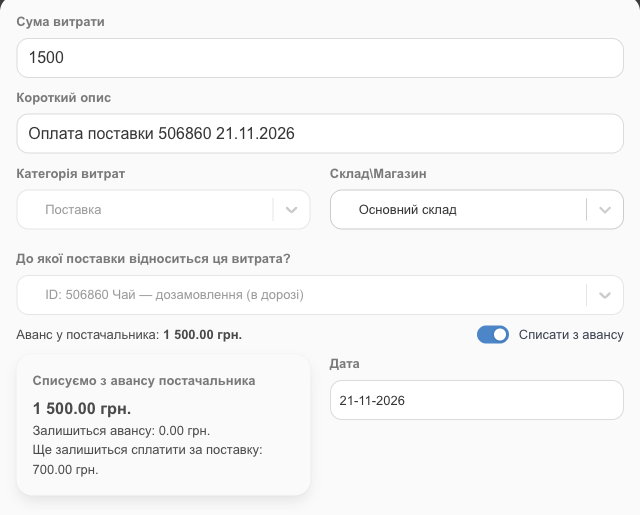
Turn it on, and instead of choosing an account you get the Paid from supplier advance block: how much will be taken, Advance left, and Still left to pay for the shipment. Pay the rest with a regular payment from an account. If you delete a payment from the advance, the money goes back to the advance.
Paid more for a shipment than needed? Turn on Keep the overpayment as supplier advance: the shipment gets the amount due, and the rest becomes an advance for the next shipment.
Paying debts with one amount
In the supplier card, click Pay debts and enter the amount and the account.
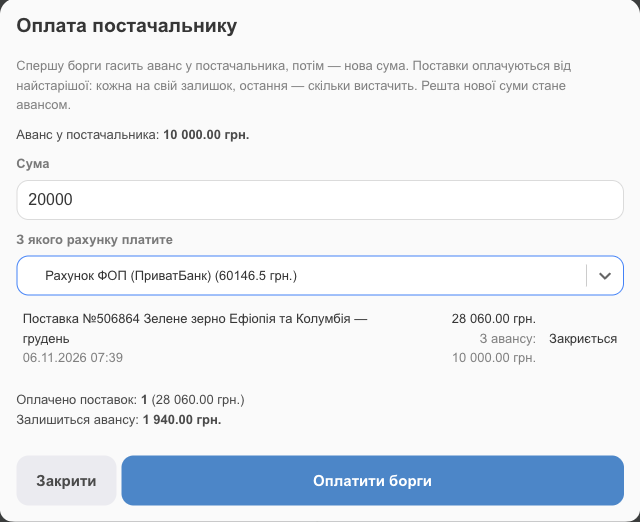
- First, the advance the supplier already holds pays the debts, then the new amount. If the advance covers everything, you can leave the amount empty.
- Shipments are paid starting with the oldest: each gets its remaining amount, and the last one gets what's left. The window shows the plan: From advance, Will be closed, or Partly.
- The rest of the new amount becomes an advance (Advance left).
- Shipments in another currency aren't paid by this payment.
The amount due is the value of the received goods, or the expected amount if the shipment hasn't been received yet (Shipments).
Limitations
- The customer balance and the advance can't go below zero. Sales on credit still go to the Not paid account.
- You can't delete a customer with a non-zero balance or a supplier with an advance: pay out or use the money first.
- Balances are kept in the system account's currency (the account's main currency).
- You can't choose the system accounts in expenses, transfers, or regular sales: money moves on them only through the Settlements section.
Troubleshooting
| Problem | What to do |
|---|---|
| The sale has no Pay from balance switch | Check that the section is on, the sale has a customer, and their balance is above zero. If you just topped up the balance and the sale window doesn't show it yet, reload the page. |
| No Top up or Pay advance buttons | The section is off in System modules or in the employee's permissions. |
| Receive payment didn't close a sale | The amount didn't cover that sale in full. The money is on the balance; when the customer pays the rest, click Receive payment again. A reserve is closed separately. |
| A customer or supplier can't be deleted | They have money on the balance or an advance. Return it (Pay out / Return advance) or use it in a sale or a shipment payment. |
How to manage business money and sales on credit: Accounts and transactions. Tracking supplier payments in reports: income and expense tracking.